How to Migrate from Salesforce to Zoho CRM: Complete Step-by-Step Guide
- Migrate from Salesforce to Zoho CRM by first auditing your Salesforce data, cleaning unnecessary records, preparing your Zoho CRM structure, mapping fields, importing the data, rebuilding automations, and validating everything before going live.
- Zoho CRM provides a built-in migration process for Salesforce data, including supported modules, field mapping, and migration review.
- A successful migration is not only about moving records. You also need to review relationships, custom fields, workflows, permissions, integrations, reports, and user adoption.
- A pilot migration is a safer way to identify mapping or data-quality problems before moving the entire Salesforce database.
- If your Salesforce setup is highly customized, professional migration support can reduce the risk of missing important data or business processes.
If you're planning to migrate from Salesforce to Zoho CRM, the safest approach is to treat it as a business transition rather than a simple CSV import. You need to understand what is in Salesforce, decide what should move, prepare Zoho CRM, map the data correctly, rebuild important automations, and verify the results before your team starts working in the new system.
Zoho CRM provides a dedicated migration process for Salesforce that can automatically identify files and suggest module and field mappings. You can then review the mappings, correct them, and check the migration results before relying on the new CRM.
According to Zoho CRM's official migration documentation, Salesforce data can include modules such as Leads, Accounts, Contacts, Deals, Campaigns, Activities, Notes, Attachments, Cases, Products and several other supported modules.
What should you do before you migrate from Salesforce to Zoho CRM?
Before moving anything, create a clear picture of your existing Salesforce setup.
Before you migrate from Salesforce to Zoho CRM, audit your Salesforce data, remove unnecessary records, document custom fields and automations, identify important relationships, prepare your Zoho CRM structure, and create a migration plan. Doing this first helps prevent avoidable mapping problems and gives your team a clear idea of what will actually move.
Start with these checks:
- List your Salesforce modules.
- Identify standard and custom objects.
- Review custom fields.
- Identify duplicate or outdated records.
- Review users, roles and permissions.
- Document important workflows and automations.
- List integrations connected to Salesforce.
- Identify reports your team depends on.
- Check which records contain attachments.
- Decide what historical data actually needs to be migrated.
For example, imagine a company has 80,000 Salesforce contacts but 20,000 are old, duplicated or no longer relevant. Moving all 80,000 records without cleaning them first simply transfers the problem into Zoho CRM.
According to Zoho, its Salesforce migration process supports multiple standard modules as well as certain custom modules, but you should still review your specific Salesforce setup before starting the migration.
How should you clean Salesforce data before migration?
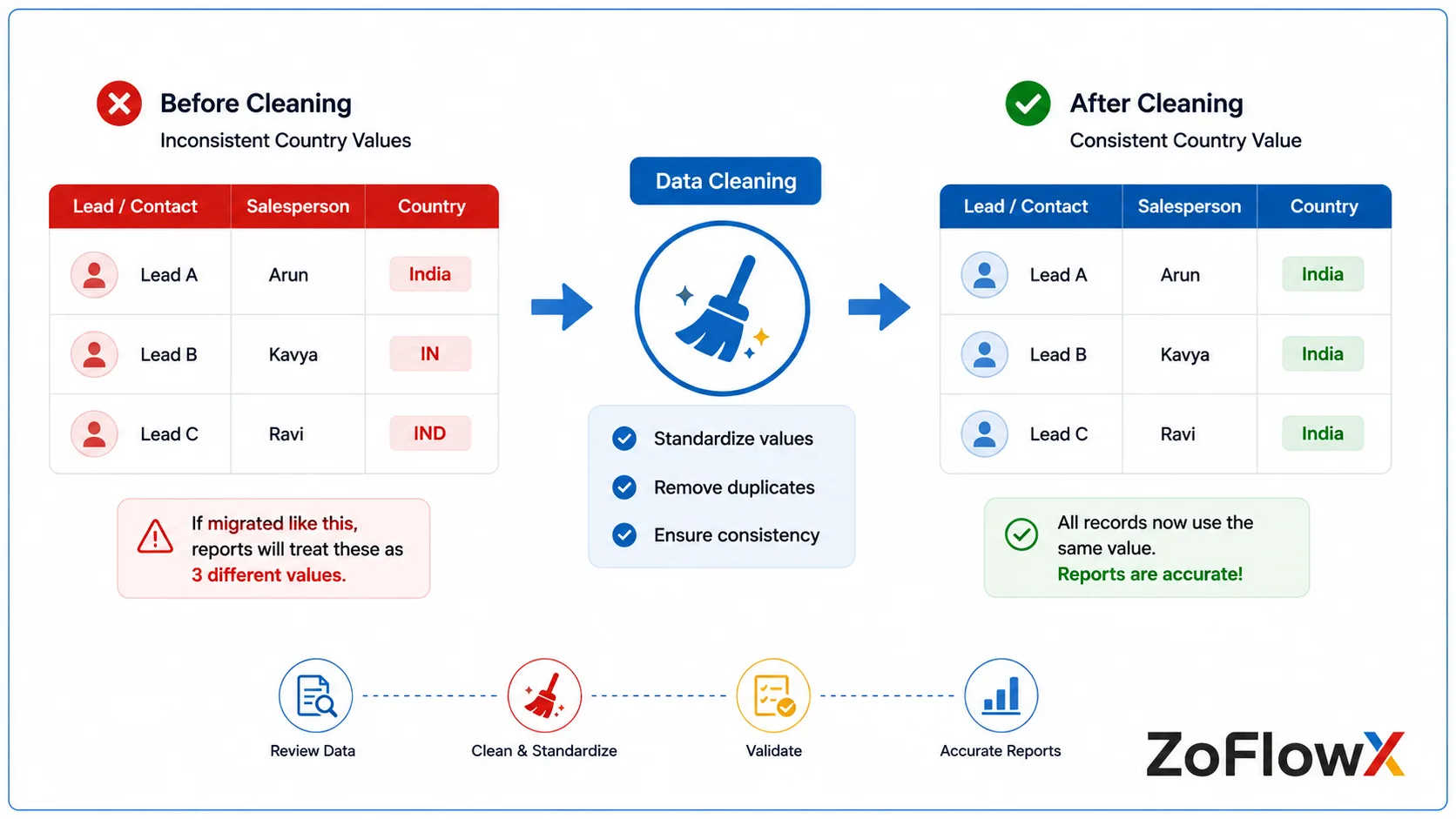
Data cleaning is one of the most important steps because migration does not magically improve poor-quality data.
Before exporting, review:
- Duplicate leads and contacts
- Inactive records
- Missing required information
- Old test records
- Incorrect email addresses
- Inconsistent picklist values
- Unused custom fields
- Old users and ownership information
- Records that your business no longer needs
Suppose one record has "India" in the Country field while another uses "IN" and another uses "IND." If you migrate those values without cleaning them, your Zoho reports may later treat them as different values.
A little preparation before migration can save hours of cleanup afterward.
How do you map Salesforce data to Zoho CRM?
Field mapping determines where each piece of Salesforce data will go inside Zoho CRM.
Example
Your Salesforce setup might contain:
- Salesforce Leads → Zoho Leads
- Salesforce Accounts → Zoho Accounts
- Salesforce Contacts → Zoho Contacts
- Salesforce Opportunities → Zoho Deals
But the difficult part is usually the custom fields.
For example: Salesforce: "Lead Type" might need to become Zoho CRM: "Customer Segment"
That mapping needs to be reviewed before importing the records.
Zoho's migration process provides automatic mapping suggestions, but you can manually adjust mappings, create fields where appropriate, assign default values and review mapped and unmapped fields before starting the migration.
This is why you should never assume that an automatic mapping is automatically correct.
What is the correct way to export data from Salesforce?
The first technical step is to obtain a reliable Salesforce data backup.
Your Salesforce export should contain the information you actually intend to move, including the relevant CSV files and, where applicable, attachment information.
Zoho's official Salesforce migration documentation explains that Salesforce backup files can contain CSV data and an Attachments folder used to preserve attachment relationships.
After downloading your export:
- Keep the original backup untouched.
- Make a working copy for analysis.
- Organize the files by module.
- Check the record counts.
- Review column names.
- Identify custom-object files.
- Check whether attachments are included.
- Confirm that important relationships can be maintained.
Do not start editing the original backup before you have stored a safe copy.
How do you set up Zoho CRM before importing the data?
Your Zoho CRM structure should be ready before the main migration begins.
Depending on your business, this may include:
- Modules
- Custom fields
- Picklist values
- Roles
- Profiles
- Users
- Record ownership
- Layouts
- Required fields
- Business rules
- Important relationships
For example, if Salesforce has a custom field called "Lead Priority" with the values High, Medium and Low, your Zoho CRM setup should have a suitable field and matching values before you begin importing records.
This makes the migration easier to control and reduces the chance of records being skipped because required information is missing.
How do you use Zoho CRM's Salesforce migration tool?
Once your Salesforce data and Zoho CRM structure are ready, you can start the migration process.
Zoho's current documentation places the migration process under the CRM's data administration/import area. You select Salesforce as the source, upload the relevant files, and then review the module and field mappings before starting the migration.
The general process is:
- Sign in to Zoho CRM with the required administrator access
- Open the data import/migration area
- Select Salesforce as the source
- Upload the Salesforce files
- Review the module mapping
- Review field mapping
- Correct unmapped fields
- Check mandatory fields
- Review the pre-migration status
- Start the migration
- Review the migration results
Zoho also provides migration summaries showing information such as mapped, unmapped, skipped and migrated data, which makes post-migration checking easier.
How should you test the migration before moving everything?
Do not make your first migration your final migration.
A safer approach is to test the process with a representative sample of your Salesforce data.
For example, a company with 50,000 contacts might first test:
- 500 contacts
- 200 accounts
- 100 leads
- 100 deals
- Several attachments
- Several custom fields
- A few records with relationships
Then check whether the records appear correctly in Zoho CRM.
Look for:
- Missing values
- Incorrect field mappings
- Broken relationships
- Incorrect owners
- Missing attachments
- Incorrect picklist values
- Duplicate records
- Unexpected skipped records
If something is wrong, correct the mapping and repeat the test before moving the full dataset.
What happens to Salesforce automations after migration?
Your data and your business processes are two different things.
Moving a Salesforce database does not mean that every Salesforce workflow automatically becomes the equivalent Zoho CRM workflow.
Before migration, make a list of important Salesforce:
- Workflows
- Assignment rules
- Validation rules
- Process automation
- Custom logic
- Notifications
- Follow-up tasks
- Integrations
Then decide how each process should work in Zoho CRM.
For example, imagine Salesforce automatically assigns a new lead to a salesperson based on the lead's location. After the migration, that business rule still needs to exist in the new system.
The migration project should therefore include a separate automation review instead of assuming that data migration and process migration are the same thing.
How do you validate your data after migration?
After the migration finishes, do not immediately declare the project complete.
Start by comparing the old and new systems.
Check:
- Total records
- Accounts
- Contacts
- Leads
- Deals
- Activities
- Attachments
- Custom fields
- Record ownership
- Relationships
- Important reports
For example, if Salesforce contained 12,000 accounts and Zoho CRM showed 11,600 after migration, stop and investigate the difference.
Zoho recommends checking imported data after each file or module is migrated and reviewing import history and migration results.
A useful validation process is:
Record count → field accuracy → relationships → attachments → reports → automations → user testing.
What should you do after the migration goes live?
Going live is not the end of the project.
Give your team time to become comfortable with Zoho CRM.
During the first few weeks:
- Monitor important records.
- Check user adoption.
- Review automation results.
- Monitor reports.
- Fix missing fields.
- Review data discrepancies.
- Answer user questions.
- Document common workflows.
You may also want to keep your Salesforce environment available during the transition according to your organization's retention and business requirements rather than immediately deleting or cancelling everything.
The goal is not simply to have the data inside Zoho CRM. The goal is to make sure your team can actually work effectively after the switch.
If you are comparing the two platforms before making the move, you may also want to compare Zoho CRM with Salesforce before switching.
What are the most common mistakes when moving from Salesforce to Zoho CRM?
Several mistakes can turn a straightforward migration into a difficult project.
Migrating dirty data
If you move duplicate, outdated or incomplete records, you will have to clean them after migration.
Ignoring custom fields
A business may depend on custom fields that are easy to overlook during planning.
Forgetting relationships
Contacts, accounts, deals and other records often depend on relationships. Those relationships should be tested after migration.
Assuming automations will move with the data
Your records can migrate successfully while important business processes remain unfinished.
Skipping a test migration
A small pilot can expose problems before they affect the entire database.
Not checking skipped records
A migration report can show that some records were not imported. Those records need investigation rather than being ignored.
Forgetting user adoption
Even a technically successful migration can struggle if employees do not understand the new CRM.
How much does it cost to migrate from Salesforce to Zoho CRM?
The cost of migrating from Salesforce to Zoho CRM depends mainly on the size and complexity of your Salesforce environment, the amount of data, the number of custom fields and modules, automation requirements, integrations, data-cleaning needs, and the amount of testing and support required. A simple database migration is very different from rebuilding a heavily customized Salesforce environment.
A small business with standard modules may have a relatively straightforward migration.
A company with:
- Large datasets.
- Custom objects.
- Complex relationships.
- Many workflows.
- Multiple integrations.
- Extensive historical data.
- Custom reporting.
will usually require more planning and implementation work.
This is also why comparing migration projects only by the number of records can be misleading.
If you are trying to estimate your own project, start by documenting your Salesforce modules, record volumes, customizations, automations and integrations.
For businesses that need help with the technical work, you can also explore migration support for your CRM data.
Can you migrate Salesforce attachments and related data?
Yes, supported Salesforce data can include attachments and other related information, but you should verify the specific files and relationships in your migration.
Zoho's Salesforce migration documentation specifically describes attachment handling and the relationship between attachment files and their source records.
Before going live, select a sample of important Salesforce records and check:
- Attachments
- Notes
- Activities
- Related contacts
- Related accounts
- Related deals
This is especially important if your sales team depends heavily on historical customer information.
What should you do if your Salesforce setup is heavily customized?
If your Salesforce environment has many custom objects, fields, automations and integrations, don't treat the project as a simple data import.
Create a migration inventory first.
For every important Salesforce customization, document:
What it does → why the business needs it → whether it should be recreated → how it should work in Zoho CRM.
Some Salesforce functionality may be recreated using Zoho CRM configuration, automation, integrations or custom development.
The important question is not: "How do I copy everything?". It is "Which parts of our existing process do we actually need in the new CRM?" . That approach can prevent you from carrying unnecessary complexity into Zoho CRM.
How can you make the Salesforce-to-Zoho transition easier for your team?
Your users should know what is changing before the switch happens.
Create a simple transition guide showing:
- What Salesforce terminology changes.
- Where common records are located.
- How leads are managed.
- How deals are updated.
- How activities are recorded.
- How reports are accessed.
- Who to contact for help.
For example, if your Salesforce team calls an opportunity an "Opportunity" and your Zoho CRM team uses "Deal," explain that difference before launch.
Also choose one or two internal users who can help colleagues during the first few weeks.
If you are considering other CRM migration routes as well, our guide to moving from HubSpot to Zoho CRM can help you compare how migration requirements differ between platforms.
Is migrating from Salesforce to Zoho CRM worth it?
Migrating from Salesforce to Zoho CRM can make sense when the cost, complexity or administration of your current Salesforce setup no longer matches your business needs. The decision should depend on your team's requirements, current CRM usage, data complexity, integrations, budget and the amount of customization you rely on.
Zoho itself provides migration assistance for businesses moving from other CRM platforms, including Salesforce, and states that customers can either perform migrations themselves or seek assistance.
Before making the final decision, compare:
- Your current Salesforce costs.
- Features your team actually uses.
- Administrative workload.
- Customization requirements.
- Reporting needs.
- Integration requirements.
- Migration complexity.
- User adoption.
For a more balanced evaluation, you can also read Zoho CRM pros and cons before committing to the switch.
What should your final Salesforce-to-Zoho migration checklist include?
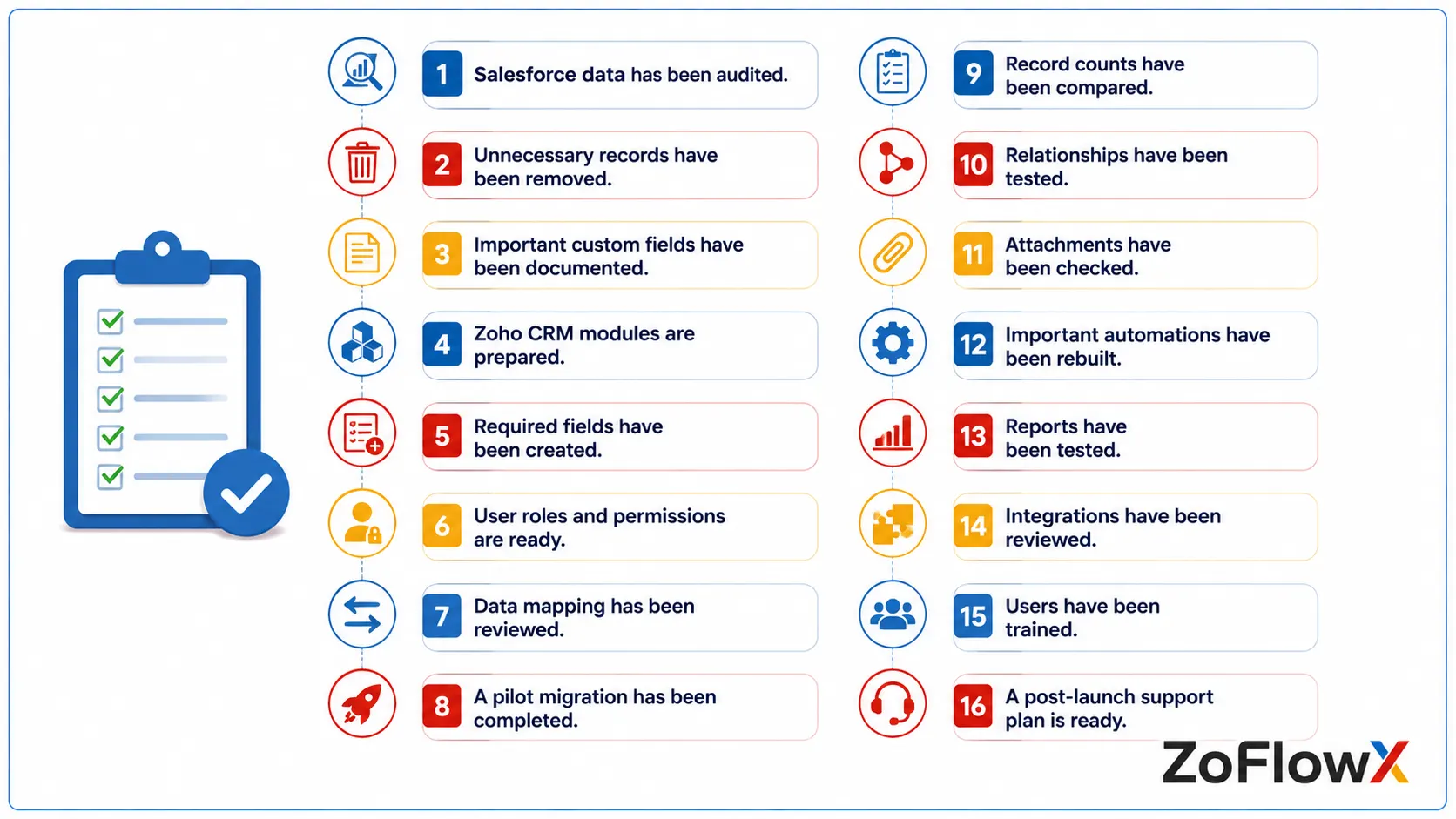
Before your team fully switches over, confirm that you have completed these checks:
- Salesforce data has been audited.
- Unnecessary records have been removed.
- Important custom fields have been documented.
- Zoho CRM modules are prepared.
- Required fields have been created.
- User roles and permissions are ready.
- Data mapping has been reviewed.
- A pilot migration has been completed.
- Record counts have been compared.
- Relationships have been tested.
- Attachments have been checked.
- Important automations have been rebuilt.
- Reports have been tested.
- Integrations have been reviewed.
- Users have been trained.
- A post-launch support plan is ready.
Conclusion
Migrating from Salesforce to Zoho CRM can be a practical move when your business wants a CRM environment that better fits its current needs, but the success of the project depends on preparation rather than the import button itself.
Audit your Salesforce environment, clean the data, prepare Zoho CRM, map the fields carefully, test a smaller dataset, rebuild important processes and validate everything before your team fully switches over.
If you want expert guidance with your migration, contact ZoFlowX at +91 8190009222 or info@zoflowx.com. Our team can help you plan the move, handle the data migration process and reduce the risk of discovering expensive problems after the switch.
Make the move with a clear migration plan, verified data and the right support behind you—so your team can leave Salesforce with confidence and start using Zoho CRM without carrying yesterday's problems into tomorrow.
Ready to Move Your CRM Without Guesswork?
A poorly planned migration can leave valuable data, relationships and processes behind—get your migration plan right before you make the switch.
Get Your CRM Migration AssessmentWhat are the most frequently asked questions about Salesforce to Zoho CRM migration?
How long does it take to migrate from Salesforce to Zoho CRM?
A Salesforce-to-Zoho CRM migration can take anywhere from a relatively short implementation for a simple setup to several weeks or longer for a heavily customized environment. The timeline depends on data volume, custom fields, modules, automations, integrations, data cleaning, testing and user training. The safest approach is to estimate the project after auditing the Salesforce environment rather than promising a fixed number of days.
Will I lose my data when migrating from Salesforce to Zoho CRM?
You can reduce the risk of data loss by creating a complete backup, cleaning the data, mapping fields carefully, testing the migration and validating the imported records. Zoho's migration process provides mapping and migration-status information, while its documentation recommends checking imported data for accuracy. Always keep your original Salesforce backup available until the migration has been fully validated.
Can I migrate Salesforce custom fields to Zoho CRM?
Yes, Salesforce custom fields can be mapped to suitable Zoho CRM fields when the destination structure supports them. During migration, Zoho allows you to review mapped and unmapped fields and create appropriate fields where supported. However, heavily customized Salesforce environments should be audited first because not every Salesforce customization will have a direct one-to-one equivalent in Zoho CRM.
Do Salesforce workflows automatically transfer to Zoho CRM?
You should not assume that Salesforce workflows and custom automation will automatically become equivalent Zoho CRM workflows. Data migration and process migration are separate parts of the project. Make an inventory of important Salesforce workflows, assignment rules, validation rules, custom logic and integrations, then determine how each process should be recreated or redesigned in Zoho CRM.
Can Zoho CRM migrate data directly from Salesforce?
Yes, Zoho CRM provides a dedicated migration process for Salesforce. You can upload the relevant Salesforce data files, review module mapping and field mapping, correct issues and then start the migration. Zoho's official documentation also explains supported Salesforce modules and the checks available during migration, so businesses should use those requirements when preparing their export.
What is the biggest risk when moving from Salesforce to Zoho CRM?
The biggest practical risk is treating migration as a simple data-transfer exercise instead of a full business-system transition. A company may successfully import contacts and deals but still have missing relationships, incorrect fields, unfinished automations, broken integrations or untrained users. A proper migration plan therefore covers data, configuration, processes, integrations, testing and user adoption.
How do I know whether I need professional migration help?
Professional migration help is most useful when your Salesforce environment contains complex customizations, large datasets, multiple integrations, important automations or business-critical relationships. A simple Salesforce account with standard modules may be manageable internally. A heavily customized CRM usually benefits from structured planning, field mapping, testing, validation and post-migration support.
What should I do after the Salesforce data is migrated?
After migration, validate the records, relationships, attachments, reports and important workflows before making Zoho CRM your team's primary system. Ask representative users to complete their normal daily tasks and report anything that does not work as expected. Continue monitoring the system after launch so that small data, workflow or usability issues can be corrected before they become larger problems.