WooCommerce Zoho Books Integration: How to Connect Your Store and Automate Accounting
- WooCommerce Zoho Books integration connects your online store with your accounting software to reduce manual data entry.
- Depending on the connector, you can synchronise orders, customers, products, invoices, and payment information.
- You can use a third-party WooCommerce extension, an integration platform, or custom API development.
- Before going live, configure data mapping, tax settings, payment handling, and duplicate prevention.
What Is WooCommerce and Zoho Books Integration?
WooCommerce and Zoho Books integration connects your online store with your accounting system so that important business information can move between both platforms.
WooCommerce manages online sales, orders, and customer information. Zoho Books manages invoices, expenses, payments, and financial records.
For example, imagine a customer purchases a product worth ₹2,000 from your WooCommerce store. With a suitable integration, the order information can automatically transfer to Zoho Books, where an invoice can be created based on your configuration.
This reduces the need to enter the same information twice.
Why Should You Connect WooCommerce with Zoho Books?
Connecting both platforms helps eCommerce businesses manage sales and accounting without constantly switching between applications.
Consider a store receiving 30 orders every day. Without automation, the owner or accountant may need to enter order details, customer information, and payment records into Zoho Books manually.
A suitable integration can reduce this repetitive work.
Some practical benefits include:
- Less manual work: Transfer supported order and customer information automatically.
- Faster invoicing: Create invoices using WooCommerce order information.
- Better financial records: Keep sales and payment information organised.
- Fewer data entry mistakes: Reduce errors caused by manually copying information.
- Improved visibility: Review sales-related accounting information in one place.
For growing stores, these improvements can make daily accounting easier to manage.
If you are planning to streamline your accounting operations, professional Zoho Books setup and accounting services can help you configure invoicing, expense tracking, GST settings, and automated financial workflows according to your business requirements.
How Does WooCommerce and Zoho Books Integration Work?
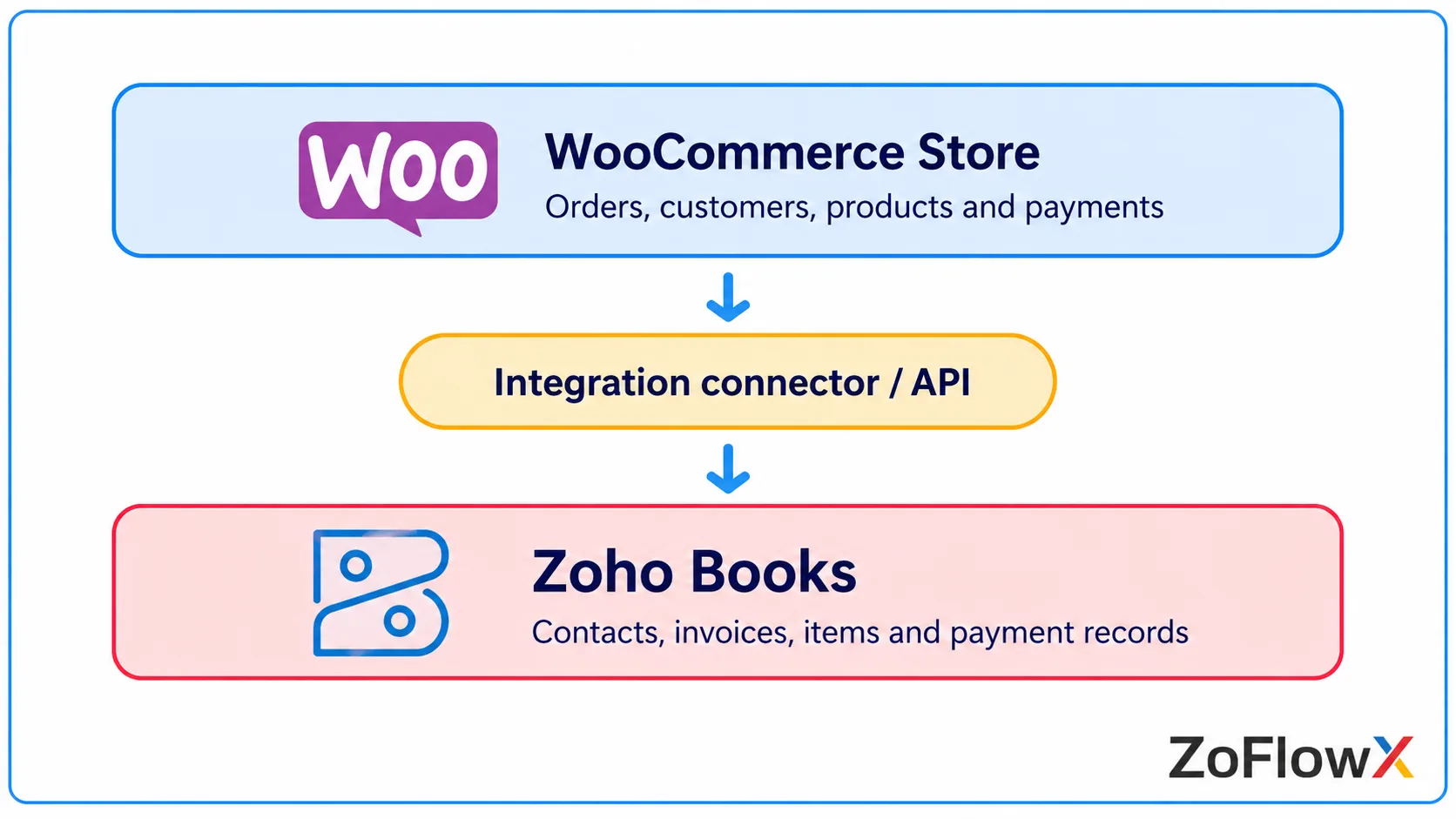
The integration works by transferring selected information from WooCommerce to Zoho Books through a connector or an API-based connection.
An API is a technology that allows two software applications to exchange information.
The typical workflow looks like this:
WooCommerce Store(Orders, customers, products and payments) → Integration Connector / API(Data transfer and synchronisation) → Zoho Books(Contacts, invoices, items and payment records)
For example, when a customer places an order, the connector can collect the order details and create the corresponding accounting record in Zoho Books.
The exact process depends on the selected integration. Some connectors offer event-based or real-time synchronisation, while others use scheduled background syncing or manual actions.
How to Integrate Zoho Books with WooCommerce?
You can integrate Zoho Books with WooCommerce using a ready-made extension, a third-party automation platform, or custom API development.
For beginners, a dedicated integration extension is usually the easiest starting point.
Step 1: Choose an Integration Method
There are several ways to establish the connection:
- WooCommerce extensions: Dedicated plugins connect your store directly to Zoho Books and provide predefined synchronisation options.
- Integration platforms: Automation services connect both applications through supported triggers and actions.
- Custom API integration: Developers build a connection based on your business requirements.
One available option is the WP Swings WooCommerce integration for Zoho Books . Another is the Yaali WooCommerce extension .
Check their pricing, supported Zoho editions, and features before choosing. For example, the Yaali listing specifies support for the US edition and .com domain only.
Step 2: Install and Connect the Extension
For the WP Swings extension:
- Purchase and download the extension from your WooCommerce account.
- Open your WordPress dashboard.
- Navigate to Plugins and upload the downloaded ZIP file.
- Install and activate the extension.
- Open its Zoho Books integration settings.
- Select Zoho Books and click the account connection option.
- Sign in to Zoho and authorise the connection.
The extension requires permission to access the relevant Zoho data. Review these permissions before approving access.
Step 3: Configure Data Synchronisation
After connecting both platforms, configure the records you want to transfer.
The WP Swings extension provides default feeds for contacts, invoices, and items. It also supports custom feeds and field mapping.
For example, you can map a WooCommerce billing address to the corresponding contact address field in Zoho Books.
Step 4: Test the Integration
Before enabling automation for all orders, create a test purchase and check whether the information reaches Zoho Books correctly.
Verify customer details, product information, invoice totals, discounts, taxes, and payment status.
Once everything works correctly, enable the required automatic synchronisation settings.
What Data Can You Synchronise Between Both Platforms?
The available data depends on the connector, its configuration, and the Zoho edition.
Data type | Possible synchronisation |
Orders | Sales and order information |
Customers | Contact details |
Products | Item information and SKUs |
Invoices | Invoice creation from order data |
Payments | Customer payment records |
Discounts | Discount and coupon information |
For example, a business selling electronic accessories can transfer customer details and order information into Zoho Books, helping its accountant prepare invoices without repeatedly entering customer information.
Some extensions also support historical data, failed-record synchronisation, and custom field mapping. However, payment gateway fees, refunds, shipping charges, and tax treatments should be checked separately.
What Are the Common Integration Problems?
Most integration problems happen because of incorrect settings, mismatched information, or failed data transfers.
Here are four issues worth checking:
- Duplicate records: Use unique customer identifiers and consistent product SKUs. Check existing records before importing historical data.
- Incorrect field mapping: Match billing addresses, tax values, product details, and invoice fields carefully.
- Failed synchronisation: Review integration logs and retry failed records after correcting the issue.
- Missing payment information: Check whether the connector supports your payment gateway and whether it transfers payment status or actual payment records.
WooCommerce also provides webhook logs under WooCommerce > Status > Logs. These can help developers investigate failed webhook deliveries.
What Should You Check Before Integration?
Before implementing WooCommerce and Zoho Books integration, confirm that both platforms are properly configured.
Pay particular attention to:
- Tax configuration: Ensure tax rates and tax treatment match your accounting requirements.
- Currency settings: Check whether your connector supports your store's currencies.
- Product identification: Use consistent SKUs to match products accurately.
- Payment handling: Decide how payment gateways, refunds, and transaction fees should be recorded.
- Data security: Review access permissions and protect API credentials.
- Integration costs: Check extension subscriptions, automation limits, and development expenses.
A small test with a few orders can help identify problems before the integration handles your entire sales volume.
Conclusion
WooCommerce Zoho Books integration helps online businesses simplify accounting by connecting sales information with financial records. It can reduce manual data entry, support invoice creation, and improve the management of customer and payment information.
The right integration method depends on your order volume, accounting requirements, and desired automation level.
If you are looking to integrate your WooCommerce store with Zoho Books, automate order synchronisation, or streamline your invoicing and accounting workflows, Zoflowx is here to help. Contact our team at +91 81900 09222, email us at info@zoflowx.com, or book a meeting with us to discuss your integration requirements and find the right solution for your business.
Frequently Asked Questions
Can WooCommerce integrate with Zoho Books?
Yes. You can connect WooCommerce with Zoho Books using third-party extensions, automation platforms, or custom API development. The available features depend on the integration method.
How do I integrate Zoho Books with WooCommerce?
Install a compatible WooCommerce integration extension, connect your Zoho Books account, authorise access, configure data feeds, and map the required fields. Test the connection before enabling automatic synchronisation.
Can WooCommerce orders automatically create invoices in Zoho Books?
Yes. Supported integration extensions can create Zoho Books invoices using WooCommerce order information. However, invoice creation rules and triggers vary between connectors.
Can I synchronise WooCommerce customer and payment details with Zoho Books?
Yes, supported connectors can transfer customer information and payment records. Check whether your selected connector supports your payment gateway, refunds, and payment status updates.
Do I need a third-party integration tool to connect WooCommerce with Zoho Books?
Not necessarily. You can use a ready-made extension or develop a custom API integration. However, a third-party connector is generally easier for businesses that want to avoid custom development.