How to Migrate Gmail to Zoho Mail? (Step-by-Step Guide)
Introduction
Want to migrate Gmail to Zoho Mail without losing important emails? You can transfer your Gmail messages using Zoho Mail's built-in migration tool, connect Gmail through Zoho Mail, or export and import your emails using Google Takeout.
The best method depends on whether you're using personal Gmail or Google Workspace, how much email data you have, and whether you're migrating one mailbox or an entire organization.
Quick answer: For most users and businesses, Zoho Mail's Data Migration tool is the recommended option. It transfers emails from Gmail to Zoho Mail using IMAP, while Google Workspace users can use Zoho's one-click migration option where supported.
In this guide, you'll learn four ways to migrate Gmail to Zoho Mail, the steps for each method, what data transfers, how to troubleshoot common errors, and how to verify your migration.
Why Migrate from Gmail to Zoho Mail?
Businesses usually move to Zoho Mail for professional email on their own domain, inside a wider business software stack.
Reason | What you get |
Business email | A professional, business-focused email environment |
Custom domain | Send email from you@yourcompany.com instead of a free address |
Zoho ecosystem | Native links to Zoho CRM, Zoho Desk, Zoho Projects and Zoho One |
Privacy | An ad-free inbox with no email scanning for advertising |
Administration | Central control of users, groups, policies and security from one Admin Console |
If your team already uses other Zoho apps, moving email into the same ecosystem removes one more disconnected tool.
Things to Check Before Migrating Gmail to Zoho Mail
Most failed migrations fail before they start, on access or storage. Check these first:
- Create your Zoho Mail account and users. For IMAP migration, every destination mailbox must already exist in Zoho Mail.
- Check available storage. Compare your Gmail usage (shown at the bottom of Gmail or at one.google.com/storage) with your Zoho Mail plan's mailbox size.
- Enable IMAP in Gmail. Go to Gmail Settings > See all settings > Forwarding and POP/IMAP > Enable IMAP, then save.
- Prepare authentication. Google no longer allows plain passwords for third-party IMAP access. Turn on 2-Step Verification and create a 16-character App Password for Zoho. Google Workspace one-click migration needs a Super Admin email, a service account email and a JSON or P12 key file instead.
- Back up important emails. Export a copy with Google Takeout before you change anything.
- Decide what to migrate. All mail or only mail after a date, which folders to exclude, and whether you also need contacts and calendars.
- Plan for new incoming email. Decide when you will switch MX records or set up forwarding, so nothing arrives in the gap.
- Keep passwords stable. Do not change the Gmail password or revoke the App Password until the migration finishes.
Best Ways to Migrate Gmail to Zoho Mail
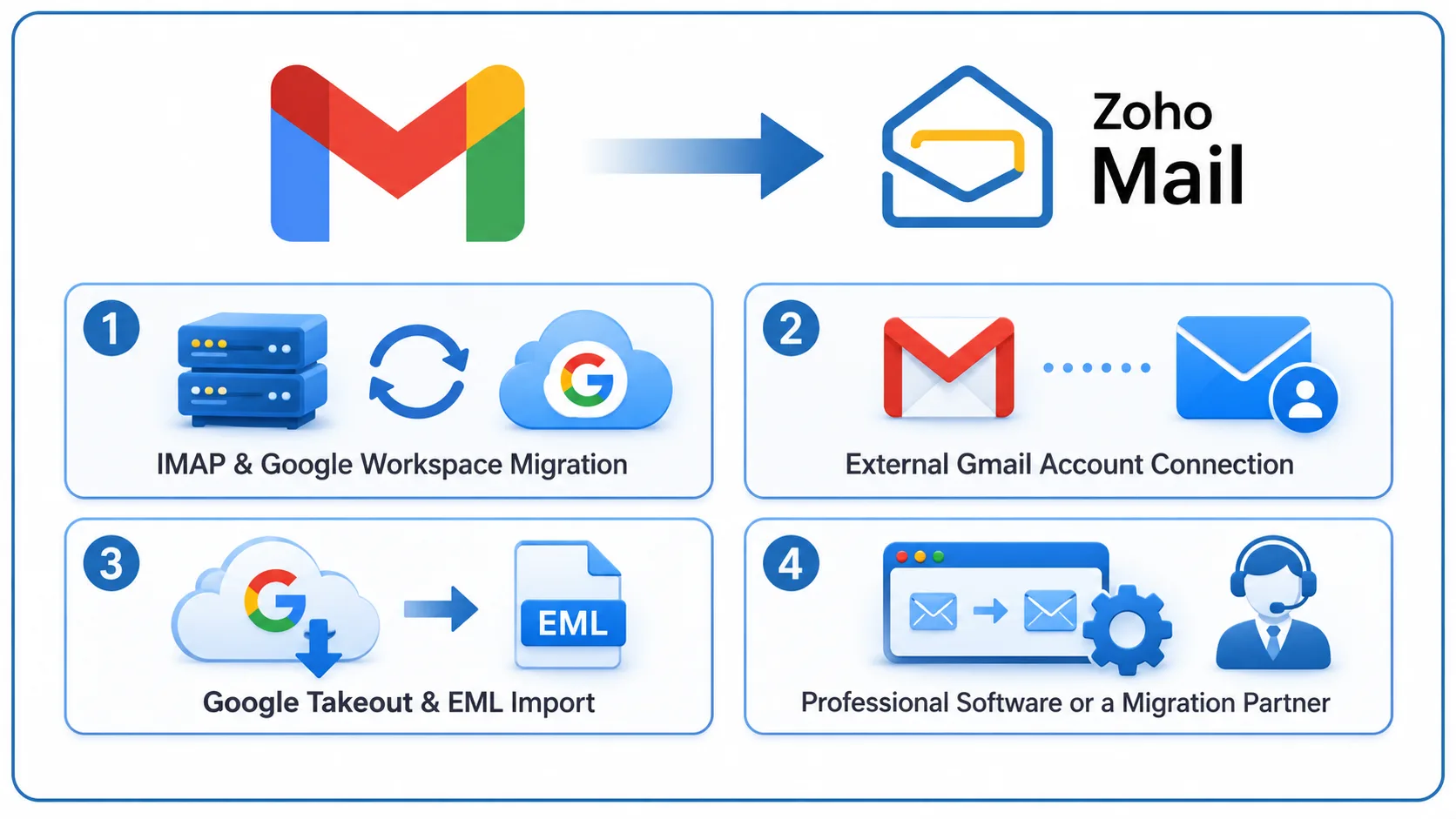
Pick your method from your situation first, then follow its steps below.
Your situation | Recommended method | Difficulty |
Personal Gmail or a few accounts, full mailbox | Zoho Mail migration tool – IMAP (Method 1) | Medium |
Whole Google Workspace organization, including supported contacts and calendars | Zoho's Google Workspace migration option (Method 1) | Medium |
You want to access Gmail inside Zoho Mail without merging accounts | External Gmail account connection (Method 2) | Easy |
You already have a Google Takeout backup | Google Takeout + EML import (Method 3) | Medium to High |
Large mailboxes, many users, or no in-house admin time | Professional software or a migration partner (Method 4) | Varies |
Method 1: Migrate Gmail Emails Using Zoho's Migration Tool
Zoho Mail provides an official migration tool that allows administrators to migrate Gmail emails into Zoho Mail. It runs from the Zoho Mail Admin Console and transfers emails directly between mail servers without requiring you to install additional software.
Requirements
- Admin access to the Zoho Mail Admin Console
- Destination users already created in Zoho Mail
- IMAP enabled in Gmail and a Google App Password for each source account, where required by the authentication method
Steps (IMAP migration for Gmail accounts)
- Log in to the Zoho Mail Admin Console and open Data Migration.
- Click Start data migration (first time) or + Create (later migrations), and name the server configuration.
- Choose Add new server details, select IMAP as the protocol, and enter imap.gmail.com as the server with port 993 and SSL.
- Configure the server settings: select All folders, list any folders to exclude, and choose whether to migrate all emails or only emails after a specific date.
- Under other preferences, decide whether to skip Inbox emails that carry multiple labels and whether to tag important and starred emails. Zoho uses the tags ZMImportant and ZMStarred.
- Create the migration, set a maximum connection limit, and choose whether to pause when Zoho storage reaches 80% or 95%.
- Add users in the Users tab, one by one (Gmail address, App Password, and Zoho address) or in bulk using Zoho's sample CSV file.
- Click Start Migration and track progress on the migration page. Click a user to see details and Mail Failures to view folder-level errors.
- When the migration finishes, use Retry for failed users. Zoho also offers a Sync option to pull newer mail for completed users; contact Zoho support to enable it.
Google Workspace one-click migration
If you are migrating an entire Google Workspace organization, you can use Zoho Mail's Google Workspace migration option instead of the standard IMAP method, where supported.
This process requires the appropriate Google Workspace administrator permissions and authentication setup, including the required service account configuration. Depending on the migration configuration, you can migrate emails and other supported data such as contacts and calendars. Gmail labels may also be migrated as folders in Zoho Mail.
Limitations
- Specific-folder selection is not available for Google accounts; you migrate all folders and exclude the ones you do not want.
- Destination accounts must exist before you add users.
- Admin Console access is required, so this method is intended for account owners and administrators.
Method 2: Access Gmail from Zoho Mail Using an External Account Connection
This method connects your Gmail account to Zoho Mail so you can read and fetch Gmail messages from the Zoho interface. It works without admin access.
Steps
- In Gmail, go to Settings > See all settings > Forwarding and POP/IMAP and make sure IMAP access is enabled, if required.
- In Zoho Mail, open Settings > Mail Accounts and select the option to add an external account.
- Select Google as the email provider and enter your Gmail address.
- Click Authenticate and sign in to your Google account.
- Review the requested permissions and allow Zoho Mail to access your Gmail account.
- Once connected, access your Gmail messages from Zoho Mail's external account interface.
Limitations
- Both accounts stay separate; Gmail messages are not merged into your Zoho Mail mailbox.
- POP fetches only Inbox mail, so use IMAP if you need access to your folders.
- This method does not migrate contacts, calendars, filters, or signatures.
Method 3: Migrate Gmail Emails Using Google Takeout
Use this method when you want an offline backup as well as a migration. Zoho Mail imports EML files, not the MBOX files that Google Takeout produces, so a conversion step is required.
Steps
- Go to Google Takeout, deselect all, select Mail, and export.
- Download the archive when Google emails you, and extract the MBOX files.
- Convert MBOX to EML. For example, import the MBOX files into Mozilla Thunderbird using the ImportExportTools NG add-on and export the messages as EML files.
- Compress the EML files into ZIP archives of 500 MB or less each.
- In Zoho Mail, go to Settings > Import/Export, choose the ZIP file, select a destination folder (or keep the ZIP's folder structure), and click Import.
- Repeat for each ZIP file and check the import status for failed emails.
Limitations
- Google Takeout exports Gmail data in MBOX format, so you need to convert it to EML before importing it into Zoho Mail.
- Folder structure and Gmail labels may not be preserved exactly during conversion and import.
- Large mailboxes may require significant time and local storage for downloading, converting, and uploading files.
- Contacts and calendars are not included in the Mail export and must be migrated separately if required.
Method 4: Migrate Gmail to Zoho Mail Using Professional Software
A dedicated IMAP migration tool or a Zoho partner that manages the migration for you makes sense when manual methods become risky or time-consuming.
When this method is useful
- Mailboxes of tens of gigabytes or dozens of users
- Migration by date range or selected folders
- A planned cutover to minimize missed emails and downtime
- Teams without the time or admin skills to troubleshoot migration issues
Typical software process
- Install and launch the migration tool.
- Select Gmail as the source and sign in using OAuth or an App Password, depending on the tool's supported authentication.
- Select Zoho Mail as the destination: imappro.zoho.com for paid Zoho accounts or imap.zoho.com for free accounts, using port 993 with SSL. Use your regional Zoho domain if you are on a regional data center (for example, imappro.zoho.in for India).
- Map users or upload a CSV file containing source and destination accounts.
- Apply filters such as date range, folders, and duplicate handling.
- Start the migration and download the report when it completes.
Benefits
- Bulk migration with folder structure maintained, where supported
- Filters for dates, folders, and duplicates
- Resume and retry options after network failures, where supported
- A completion report you can verify against
Need it done for you? ZoFlowX is a Zoho Authorized Partner that plans and manages Gmail and Google Workspace migrations to Zoho Mail, including DNS and MX cutover, user setup, and post-migration checks.
Manual vs Automated Gmail to Zoho Mail Migration
Manual methods cost nothing extra but take more time and skill; automated tools trade a licence fee for speed and control.
Factor | Manual (Methods 1 to 3) | Automated (Method 4) |
Cost | Included with Zoho Mail (Method 3 may need converter software) | Paid licence or partner fee |
Migration time | Hours to days, depending on mailbox size and connection limits | Faster, with parallel connections and scheduling |
Bulk migration | Supported by Zoho's Admin Console via CSV | Built for many users at once |
Ease of use | Needs admin settings, App Passwords or file conversion | Guided interface |
Folder structure | Kept by IMAP migration; labels become folders | Kept, with folder mapping options |
Selective migration | Date filter and folder exclusions only | Date, folder and item filters |
Duplicate handling | Limited; reruns can duplicate mail | Duplicate detection in most tools |
Technical requirements | IMAP, App Passwords, DNS knowledge for cutover | Basic account credentials |
For one or two mailboxes, Zoho's own tool is usually enough. For a company-wide move, automation or a partner reduces risk.
What Data Can You Migrate from Gmail to Zoho Mail?
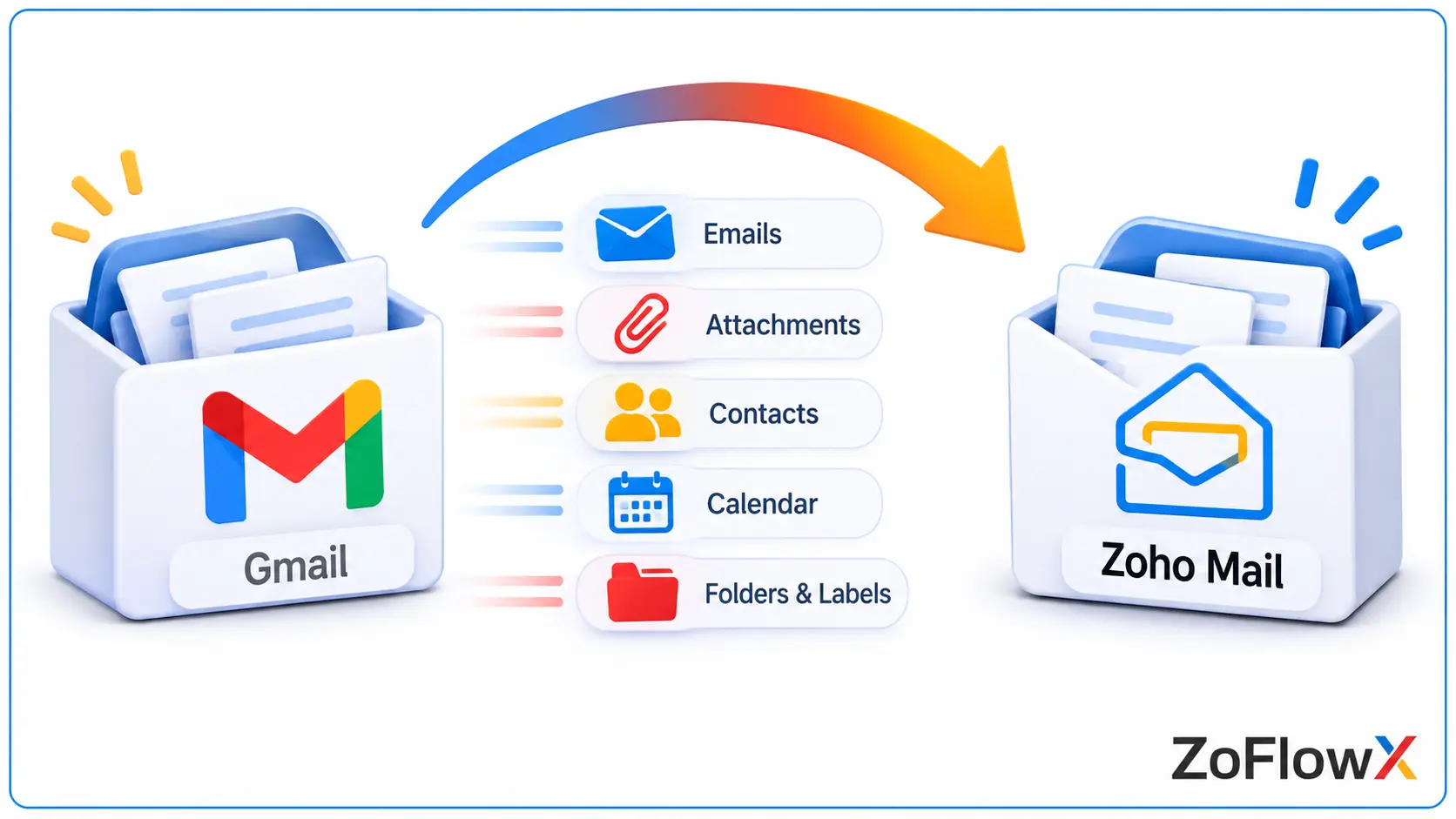
Emails and folders move with every method; contacts, calendars and settings depend on the method or need separate steps.
Gmail data | What happens in Zoho Mail |
Emails | Emails Migrated using Methods 1, 3, and 4. Can be viewed using Method 2. |
Attachments | Transferred along with emails, provided they meet Zoho Mail's message size limits and migration requirements |
Labels | Converted into folders. Emails with multiple labels may appear in multiple folders |
Starred and important | Can be tagged as ZMStarred and ZMImportant during Admin Console migration |
Contacts | Migration depends on the method used. If contacts are not included, export them from Google Contacts and import them into Zoho Mail |
Calendar | Depends on the migration method and supported configuration. If not migrated automatically, export Google Calendar and import it into Zoho Calendar using a supported format |
Filters | Not migrated. You need to recreate them in Zoho Mail |
Signatures | Not migrated. You need to set them up again in Zoho Mail settings |
New incoming email | Not migrated. Update MX records or set up email forwarding to receive new emails in Zoho Mail |
Before you start, check which items your chosen method supports.
Common Gmail to Zoho Mail Migration Problems and Solutions
Gmail Authentication Failed
Google blocks plain passwords for IMAP access. Turn on 2-Step Verification, create a new App Password, and enter it in the source password field without spaces. For Google Workspace, confirm IMAP is allowed in the Google Admin console.
IMAP Connection Error
Confirm IMAP is enabled in Gmail settings. Check the server (imap.gmail.com), port (993) and security (SSL). Lower the maximum connection limit if Google throttles parallel connections.
Migration Stuck or Taking Too Long
Large mailboxes, big attachments and Google's bandwidth limits slow migration. Check whether Zoho paused it at your storage threshold (80% or 95%), free space or add storage, then resume. Migrate in date ranges if needed.
Some Emails Were Not Migrated
Open Mail Failures in the migration for folder-level errors. Check your date filter and excluded folders, then use Retry for the affected users. Emails in non-standard formats may be rejected.
Duplicate Emails After Migration
Duplicate emails may occur when a migration is rerun, when emails have multiple Gmail labels, or when migration settings cause the same messages to be transferred more than once. Before restarting a migration, review the previously migrated folders and the duplicate-handling options available in Zoho Mail. If your emails have multiple Gmail labels, check the migration settings carefully to avoid importing duplicate messages.
Attachments Not Migrated
Check whether the affected emails or attachments exceed Zoho Mail's applicable message size limits. Large emails may fail to migrate depending on the source, destination, and migration method. If you are importing EML files, make sure each ZIP archive stays within Zoho's supported import size limit. For oversized attachments, consider storing the files in cloud storage and sharing the links instead.
Checklist After Migrating Gmail to Zoho Mail
Verify the migration before you retire Gmail:
- Check transferred emails: compare message counts for key folders in Gmail and Zoho Mail.
- Verify folders: confirm labels arrived as folders and nested folders sit in the right place.
- Check attachments: open a sample of older emails with large attachments.
- Test sending and receiving: send to and from an external address.
- Update MX records or set up forwarding: point your domain to Zoho Mail, or forward Gmail to Zoho during the transition.
- Update your email address: on banking, subscriptions, social media and client records.
- Verify contacts and calendars: confirm they imported, or import them separately.
- Recreate filters and signatures in Zoho Mail settings.
- Keep Gmail active for a few weeks to catch late emails and anything missed.
Conclusion
The safest way to migrate Gmail to Zoho Mail is Zoho's own Data Migration tool: IMAP for Gmail accounts, one-click for Google Workspace. Use the IMAP/POP account link if you only need to read Gmail inside Zoho, and Google Takeout when you also want an offline backup. For large mailboxes or many users, a professional tool or a Zoho partner saves time and lowers the risk of missing or duplicate emails.
Whichever method you choose, prepare access and storage first, verify every folder afterwards, and keep Gmail active until you are sure everything has moved.
Frequently Asked Questions
Can I migrate Gmail to Zoho Mail for free?
Yes. Zoho's Data Migration tool, the IMAP/POP account link and EML import are included with Zoho Mail. You pay only if you choose third-party migration software or a partner.
How do I migrate Gmail to Zoho Mail without losing emails?
Use Zoho's IMAP migration, which copies emails and leaves your Gmail mailbox unchanged. Back up with Google Takeout first, check Mail Failures after the run, and keep Gmail active until you have verified folder counts.
Can I migrate multiple Gmail accounts to Zoho Mail?
Yes. In the Zoho Mail Admin Console, add users one by one or upload a CSV of source and destination accounts. Google Workspace domains can also use one-click migration.
Will Gmail attachments transfer to Zoho Mail?
Yes. Gmail attachments are generally migrated along with their emails. However, very large messages or attachments may fail if they exceed Zoho Mail's applicable size limits or migration restrictions. Check the supported limits before starting your migration.
Can I migrate Gmail emails without IMAP?
Yes. Google Workspace one-click migration uses a service account instead of IMAP, and Google Takeout exports mail without IMAP. Takeout files must be converted to EML before importing.
Can I continue using Gmail after migration?
Yes. Migration copies your data, so your Gmail account and emails stay as they are. You can forward new Gmail messages to Zoho Mail during the transition.
How long does Gmail to Zoho Mail migration take?
The time required to migrate Gmail to Zoho Mail depends on mailbox size, the number of emails and attachments, network speed, connection limits, and the number of users being migrated. Small mailboxes may migrate within a few hours, while large mailboxes or entire organizations may take several days. Actual migration time varies depending on the migration conditions.
Can I migrate Gmail to Zoho Mail without software?
Yes. Methods 1 and 2 run entirely in your browser through Zoho Mail and Gmail settings. Only the Takeout route needs a tool to convert MBOX files.