How to Automate Your Sales Process with Zoho CRM (Step-by-Step Guide)
Your sales team is working hard, but leads still slip through. A new enquiry sits unassigned for a day. A follow-up call is forgotten. A deal is stuck in one stage for weeks, and nobody knows why.
This is not a people problem. It is a sales process problem. When everything depends on memory and manual updates, small gaps turn into lost revenue.
The good news is that you can fix this without hiring more people. In this guide, you will learn how to automate your sales process using Zoho CRM, step by step, with simple examples you can try this week.
Why Sales Process Automation Matters for Your Team
Let’s be honest. Most salespeople did not join a company to update spreadsheets or send the same “just checking in” email ten times a day. They want to talk to customers and close deals.
Sales process automation takes the boring, repeated work off your team’s plate. With Zoho CRM, the system handles things like:
- Capturing and assigning new leads
- Sending follow-up emails and reminders
- Creating tasks when a deal moves ahead
- Alerting managers when something needs attention
The result is a team that responds faster, follows up on time, and has more hours for real conversations. That directly improves sales team productivity and your lead conversion process.
One important point: automation does not fix a messy process. First, write down your sales steps, from first enquiry to closed deal. Then automate them one by one.
Step 1: Zoho CRM Lead Management and Lead Assignment Automation
Speed matters most with new leads. A customer who fills a form today may call your competitor tomorrow if nobody replies.
Zoho CRM lead management helps you capture leads automatically from web forms, emails, social media, and campaigns. Then lead assignment automation gives each lead to the right person without anyone doing it by hand.
example: A real estate company gets enquiries from its website, Facebook ads, and property portals. Instead of one person sorting them every morning, assignment rules do it:
- Chennai enquiries go to Rep A
- Coimbatore enquiries go to Rep B
- Leads asking about villas go to the premium sales team
Every lead gets an owner within seconds.
Next, add lead scoring. Give points for actions that show interest. For example:
- Opened an email: +5 points
- Visited the pricing page: +10 points
- Requested a demo: +25 points
When a lead crosses 50 points, Zoho CRM can mark it “hot” and notify the sales rep. Now your team calls the right people first, not just the newest ones.
Step 2: Set Up Zoho CRM Follow-Up Automation
Most deals are lost in the follow-up, not in the pitch. Sales reps are busy, and “I’ll call tomorrow” quietly becomes “I forgot.”
Zoho CRM follow-up automation solves this with workflow rules, tasks, and email templates. You decide the trigger once, and Zoho does the rest.
Practical example: A software training institute sets up this follow-up chain for every new enquiry:
- Day 0: An automated welcome email goes out with the course brochure.
- Day 2: A task is created for the counsellor to call the student.
- Day 5: An automated email reminder goes out if no call was logged.
- Day 7: If there is still no reply, an email with a success story is sent.
Nobody has to remember anything. The counsellor only sees a clean to-do list.
You can also use macros for actions your team repeats often. With one click, a macro can send an email, update the lead status, and create the next task. Small saving each time, big saving over a month.
Step 3: Zoho CRM Workflow Automation for Lead Nurturing
Not every lead is ready to buy today. Some need more information, and some need time. This is where Zoho CRM workflow automation helps with automated lead nurturing.
The trick is to not send the same message to everyone. Group your leads by:
- Industry
- Company size
- Lead source (website, event, referral, ads)
- Interest level
Then create a small nurturing flow for each group. Keep the goal simple. You are not trying to push a lead to buy; you are nudging them to the next stage.
Practical example: A business that sells accounting software has two groups of leads:
- Small shops: They get simple emails about saving time on billing.
- Growing companies: They get content about multi-branch reports and team access.
You can also trigger actions based on behaviour. If a lead downloads a pricing guide, Zoho CRM can alert the sales rep to call within the hour. That lead is already interested, so the timing is perfect.
Workflows work well after the sale too. For example, a renewal workflow can start 90 days before a subscription ends, with reminders, emails, and a call task for the sales team.
Step 4: Build a Zoho CRM Sales Pipeline with Blueprint
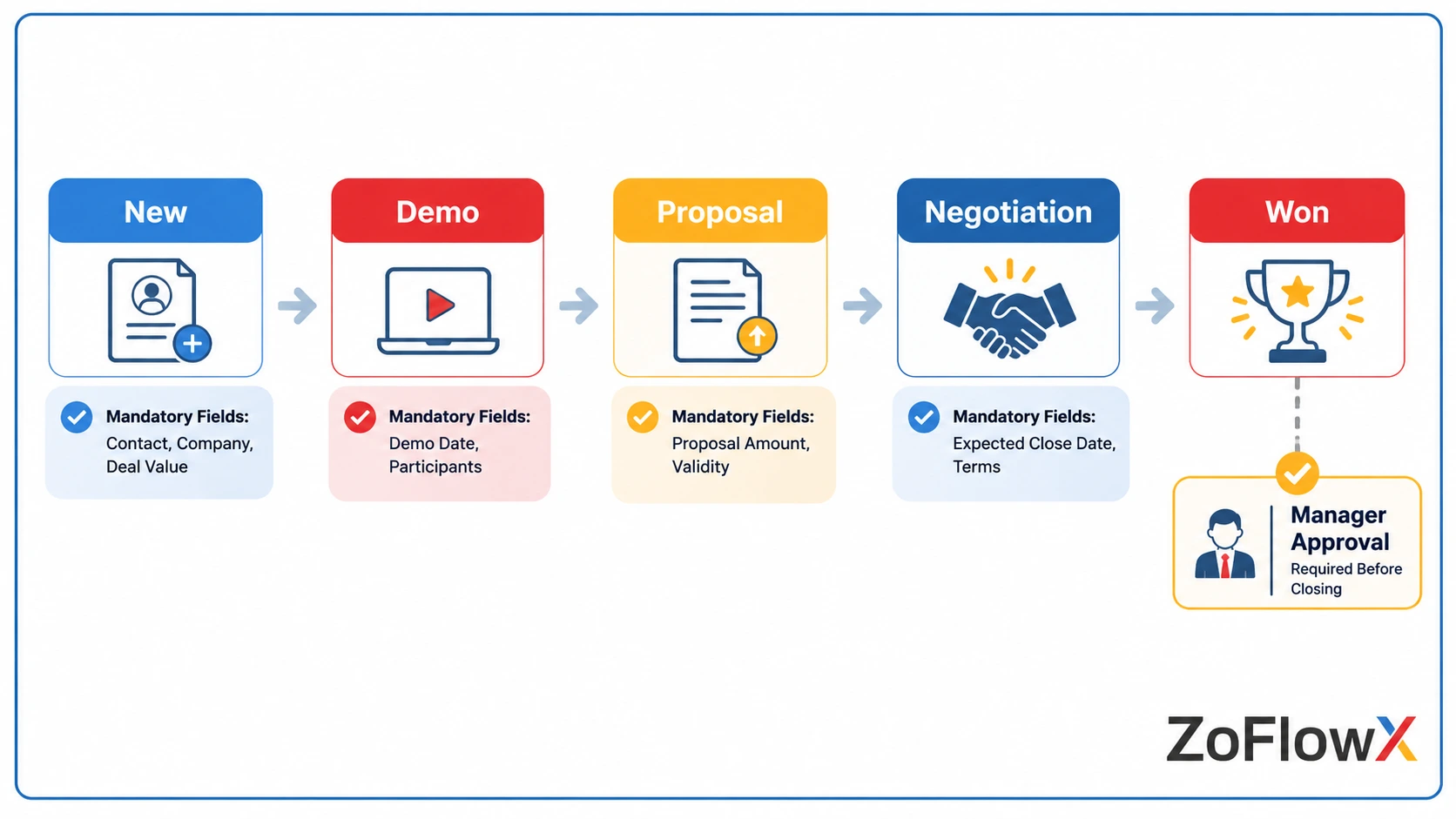
A clear Zoho CRM sales pipeline shows where every deal stands. But a pipeline only works when everyone follows the same steps. This is where Blueprint automation comes in.
Blueprint is like a map for your sales cycle. You decide what must happen before a deal can move to the next stage. This keeps your sales cycle management consistent, no matter who handles the deal.
Practical example: A manufacturing company sets these rules:
- Before a deal moves to “Proposal,” the rep must add the decision maker’s name and the product quantity.
- Before moving to “Negotiation,” a site visit or demo must be logged.
- If the discount is more than 15%, the deal needs manager approval.
Because of this, no one skips steps, and managers do not need to ask for updates. Deal tracking becomes simple, since every stage has proof of what happened.
Your pipeline also becomes more honest. When a deal sits too long in one stage, you can see it and act early.
Step 5: Track Results with Zoho CRM Automation Features
Automation is not only about saving time. It also tells you what is working. Some of the most useful Zoho CRM automation features for managers are:
- Automated sales notifications: Get alerts when a big deal is created, a lead replies, or a deal is stuck.
- Real-time dashboards: See leads, pipeline value, and conversion rates in one view.
- Scheduled reports: Send weekly sales reporting and analytics to your team or owner automatically.
- Zia, the AI assistant: Get hints on the best time to contact a lead and which deals may close soon.
Practical example: A sales head sets a Monday morning report that shows leads by source, deals won, and deals at risk. Instead of spending Monday collecting data, the team spends it discussing what to do next. This kind of sales performance tracking helps you coach people early, not after the quarter ends.
How to Automate Sales Process Using Zoho CRM Without Overdoing It
It is tempting to switch on every feature on day one. Please don’t. Here are a few simple tips:
- Plan before you build. Before you switch on any workflow, understand what a proper CRM setup involves, from mapping your sales steps to training your team.
- Start small. Automate lead assignment and follow-ups first. Add more later.
- Keep emails human. Use the lead’s name and write like a person, not a robot.
- Review every month. Check which workflows get replies and fix the ones that don’t.
- Train your team. Even the best setup fails if the team does not use it daily.
- Clean your data. Remove duplicates and add required fields so reports stay correct.
A good setup feels light for the sales rep. If your team feels the CRM is extra work, something needs changing.
How ZoFlowX Helps with Zoho CRM Implementation
Knowing what to automate is one thing. Setting it up correctly for your business is another. That is where ZoFlowX comes in.
As a Zoho authorized partner, ZoFlowX looks at how your team actually sells today. We find the gaps, then build Zoho CRM automation around your real workflow, not a one-size-fits-all template. That includes lead assignment rules, scoring, follow-up automation, Blueprints, dashboards, and training for your team, so the system gets used from day one.
Whether you are setting up Zoho CRM for the first time or fixing a setup that is not working, our team can guide you. You can call us at +91 8190009222 or write to info@zoflowx.com, and we will help you plan your Zoho CRM implementation.
Ready to Automate Your Sales Process?
Stop losing leads to slow replies and missed follow-ups. Let ZoFlowX build a Zoho CRM setup that fits the way your team sells. Share your current process, and we will show you what can be automated first.
Book a Free ConsultationFrequently Asked Questions
1. What is sales process automation in Zoho CRM?
It means Zoho CRM does the repeated sales tasks for you. It can capture leads, assign them to the right rep, send follow-up emails, and create reminders. Your team spends less time on admin work and more time talking to customers.
2. Can small businesses use Zoho CRM workflow automation?
Yes. You can start with just two or three simple workflows, such as automatic lead assignment and follow-up reminders. Most setups use a visual panel with no coding, so small teams can begin easily and add more later.
3. How does Zoho CRM help with lead follow-ups?
You set a trigger once, and Zoho CRM does the rest. For example, a new lead gets a welcome email on day one, and a call task is created for your rep on day two. If there is no reply, another email goes out. This way, no lead is forgotten.
4. What is the difference between workflow rules and Blueprint in Zoho CRM?
Workflow rules run actions automatically, like sending an email or creating a task. Blueprint controls the steps of a deal. It decides what must be done before a deal moves to the next stage, such as adding a decision maker’s name or getting manager approval.
5. Which part of the sales process should I automate first?
Start with lead assignment and follow-ups, because delays here cost you the most. Once your team is comfortable, add lead scoring, nurturing emails, and dashboards.