How to Implement Zoho CRM for Your Business: Step-by-Step
- Zoho CRM implementation means planning, configuring, testing, and preparing the system around the way your business actually works.
- Before changing any settings, understand your current sales process and decide what you want Zoho CRM to help you improve.
- Clean your customer data before importing it. Poor data can lead to unreliable reports and duplicate records.
- Keep your sales pipeline simple and easy for your team to follow.
- Test your setup with a small batch of records before importing everything.
- Start with essential automation and add more as your team becomes comfortable with the system.
- A simple implementation may take a few days or weeks, while larger projects involving migration, integrations, customization, and training can take longer.
- The real measure of success is whether your team can use Zoho CRM consistently in their daily work.
Implementing Zoho CRM means more than creating an account. You need to understand your business process, plan what the CRM should track, configure the system, prepare and import data, set up automation, test everything, train your team, and then go live.
The goal is not simply to make Zoho CRM work. The goal is to make it work in a way that supports how your business handles leads, customers, follow-ups, and sales.
What Is Zoho CRM Implementation?
Zoho CRM implementation is the process of setting up and preparing Zoho CRM for daily business use.
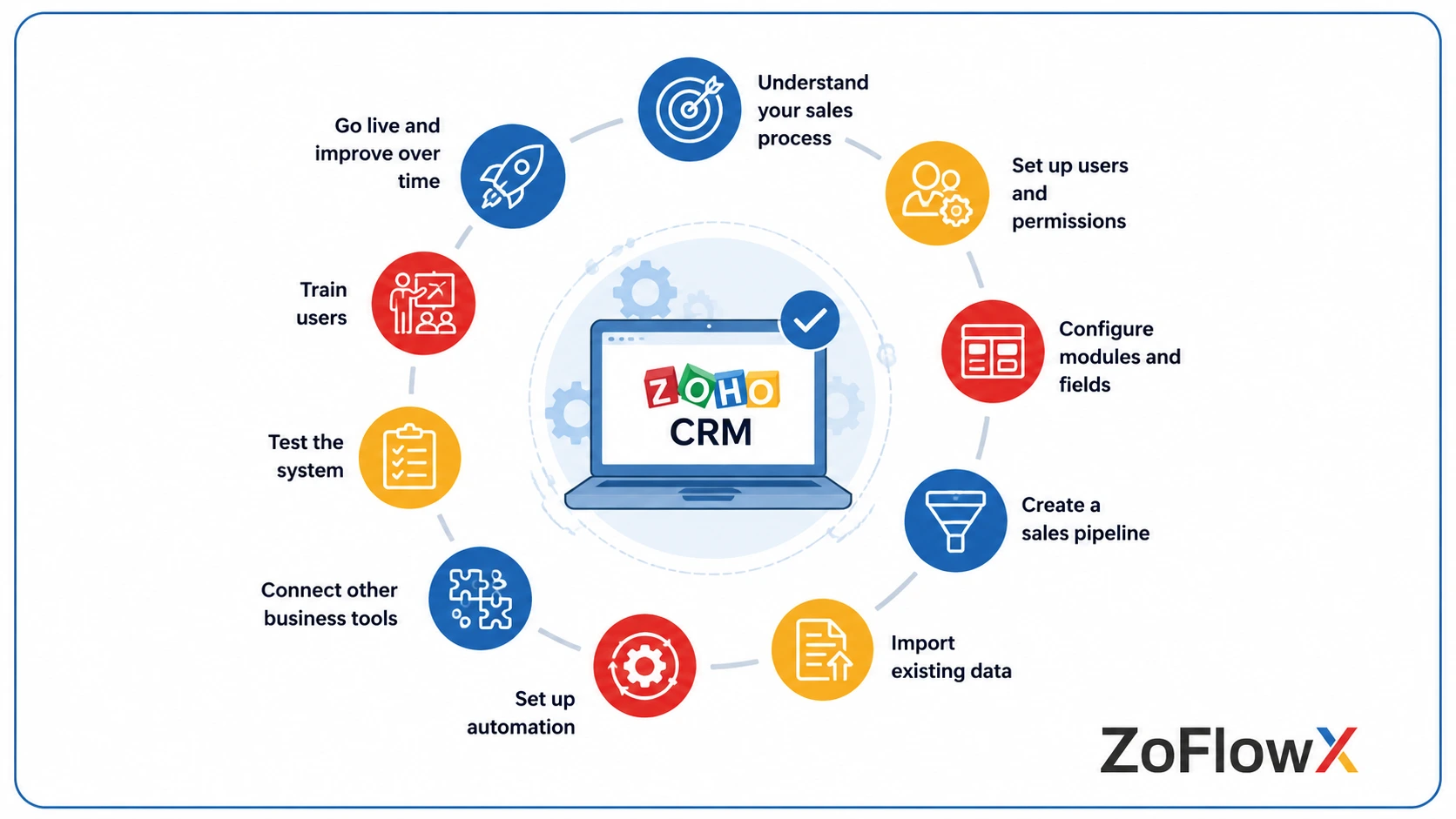
It can include:
- Understanding your sales process
- Setting up users and permissions
- Configuring modules and fields
- Creating a sales pipeline
- Importing existing data
- Setting up automation
- Connecting other business tools
- Testing the system
- Training users
- Going live and improving the setup over time
Signing up gives you access to Zoho CRM. Implementation prepares it for your actual business.
If you want a broader explanation before starting, you can read about what Zoho CRM implementation involves.
Why Should You Plan Before Setting Up Zoho CRM?
One of the biggest mistakes businesses make is opening Zoho CRM and immediately changing settings.
This can lead to unnecessary fields, confusing sales stages, and reports that do not answer useful business questions.
According to ZoFlowX, it is better to first understand how your sales process works today, including the problems your team faces.
Before you configure anything, write down:
- How leads enter your business
- Who follows up with them
- What information your team needs
- How a lead becomes an opportunity
- What happens before a deal is closed
- What information managers need to see
This gives you a clearer plan for the CRM.
What Should You Decide Before Starting the Implementation?
What Information Do You Need to Track?
Most businesses need to track information such as:
- Lead source
- Contact details
- Company information
- Products or services of interest
- Deal value
- Follow-up activities
- Sales stage
- Expected closing date
Your business may need additional information depending on how you operate.
For example, a coaching centre may need to track the course a student is interested in. A manufacturing company may need to track product requirements or enquiry specifications.
The CRM should reflect the information your team actually uses.
What Does Success Look Like?
Before implementation, decide what you want to improve.
For example:
- Faster responses to new leads
- Better follow-up tracking
- Clearer sales pipeline visibility
- Fewer missed opportunities
- More reliable sales reports
These goals help you decide what to configure and what not to add.
How Do You Prepare Your Existing Customer Data?
Data preparation is one of the most important parts of Zoho CRM implementation.
Customer information may currently exist in spreadsheets, email lists, another CRM, or multiple systems.
Bring Your Data Together
Collect the information you plan to move into Zoho CRM.
This may include:
- Names
- Phone numbers
- Email addresses
- Company names
- Open leads
- Existing customers
- Active deals
- Notes or important history
If you are moving from another CRM, start by reviewing the available data and deciding what needs to be transferred.
For businesses moving from an existing system, migrating your existing CRM data should be planned before the final implementation begins.
Clean the Data Before Importing It
Before importing your records:
- Remove unnecessary duplicates
- Standardize phone number formats
- Correct obvious spelling mistakes
- Check email addresses
- Use consistent company names
- Remove outdated records that are no longer useful
The cleaner your data is before implementation, the easier it will be to maintain accurate reports later.
How Do You Set Up Users and Permissions?
Not everyone in your company needs the same level of access.
For example:
- Sales representatives may need access to their leads and deals.
- Managers may need access to team reports and records.
- Administrators may manage users and system settings.
The exact permissions depend on your business structure.
The important point is to give users the access they need without giving everyone permission to change important settings.
How Do You Configure Zoho CRM for Your Business Process?
Zoho CRM includes standard modules and fields, but not every business needs to use them in the same way.
You may need to:
- Add custom fields
- Hide fields you do not use
- Rename labels
- Change layouts
- Adjust modules
- Create custom processes
The goal is to keep the system simple for the people using it every day.
If your requirements go beyond the standard setup, consider customizing the CRM for your processes instead of forcing your team to work around a generic structure.
Keep Fields Useful
Every additional field creates more work for your team.
Ask a simple question before adding a field:
Will this information help someone do their job or make a useful business decision?
If the answer is no, you may not need it.
How Should You Set Up Your Sales Pipeline?
Your sales pipeline should reflect the actual steps your team follows.
For example:
New Enquiry → Qualified → Proposal Sent → Negotiation → Closed Won or Closed Lost
Your stages may be different, but each stage should represent a meaningful step.
Avoid vague stages such as:
In Progress
That description can mean almost anything.
Instead, use stages that clearly show what has happened and what should happen next.
How Do You Import Data into Zoho CRM Safely?
Do not import your entire database without testing first.
Start With a Small Test Import
Import a small group of records first.
For example, test with a limited number of contacts or leads.
Then check:
- Did the information go into the correct fields?
- Are contacts connected to the correct companies?
- Are dates displayed correctly?
- Are important records missing?
- Are duplicates being created?
Once you are satisfied with the test, you can proceed with the larger import.
For complex databases or data from multiple systems, additional planning may be needed.
How Do You Set Up Lead Assignment and Follow-Ups?
New leads should not sit in the CRM without an owner.
Depending on your business, leads can be assigned based on:
- Location
- Product or service
- Lead source
- Team member
- Territory
You can also create rules to ensure that leads are assigned to the right person.
Follow-up reminders can help prevent opportunities from being forgotten.
Start with simple rules that solve real problems. You can add more automation later if needed.
How Should You Configure Automation?
Automation can reduce repetitive work, but adding too much automation too early can make the system difficult to understand.
Start with essential processes such as:
- Lead assignment
- Follow-up reminders
- Notifications
- Task creation
- Email alerts
After your team starts using the CRM, you will have a clearer understanding of where additional automation may help.
How Do You Keep the CRM Easy for Your Team to Use?
A complicated CRM often leads to poor adoption.
Your sales team may need to see:
- Customer details
- Current deal stage
- Previous interactions
- Next follow-up
Managers may need:
- Pipeline value
- Team performance
- Conversion information
- Sales reports
These users do not always need the same information on their screens.
Keep layouts focused on the work each person needs to complete.
How Do You Test Zoho CRM Before Going Live?
Before asking your entire team to use the system, test the complete process yourself.
Try a real example:
- Add a new lead.
- Assign it to a user.
- Convert it when appropriate.
- Create a deal.
- Move it through your sales stages.
- Test any automation.
- Check the reports.
- Confirm that users can access what they need.
Testing can help identify problems before they affect your entire team.
How Should You Train Your Team?
Do not try to teach every Zoho CRM feature in one session.
Train people based on their role.
For example, a salesperson may only need to learn how to:
- Add a lead
- Update customer information
- Record an activity
- Move a deal to the next stage
- Complete follow-ups
Managers may need additional training on reports and team visibility.
Short, practical training sessions are usually easier for people to remember than long demonstrations.
Using examples from your own business can also make the training easier to understand.
What Should You Do Before Going Live?
Before launch, review the system carefully.
Check:
- User access
- Required fields
- Sales stages
- Data imports
- Automation
- Reports
- Notifications
- Integrations
It is better to identify problems during testing than after your team starts depending on the system.
What Should You Monitor After Zoho CRM Goes Live?
Implementation does not completely end on launch day.
During the first few weeks, monitor:
- User adoption
- Missing or incorrect data
- Automation issues
- User questions
- Sales stages that cause confusion
- Reports that need improvement
Ask your team what is difficult and what is working well.
Small improvements after launch can make a significant difference over time.
What Are the Most Common Zoho CRM Implementation Mistakes?
Starting Without a Plan
Changing settings without understanding your business process can create a confusing system.
Plan the structure before configuring the CRM.
Adding Too Many Fields
Too many fields can slow down data entry and make users avoid updating records.
Only collect information that is genuinely useful.
Importing Unclean Data
Duplicate or inconsistent data can affect reporting and reduce trust in the CRM.
Clean the data before importing it.
Starting Without a Plan
Changing settings without understanding your business process can create a confusing system.
Plan the structure before configuring the CRM.
Adding Too Many Fields
Too many fields can slow down data entry and make users avoid updating records.
Only collect information that is genuinely useful
Importing Unclean Data.
Duplicate or inconsistent data can affect reporting and reduce trust in the CRM.
Clean the data before importing it.
How Long Does It Take to Implement Zoho CRM
The timeline depends on the complexity of your business requirements.
A simple setup may take a few days to a couple of weeks.
A larger implementation involving data migration, customization, integrations, automation, and training can take several weeks or longer.
The biggest factors include:
- Amount and quality of existing data
- Number of users
- Complexity of your sales process
- Customization requirements
- Integrations with other systems
- Training requirements
Instead of choosing a timeline first, define the scope of work and build a realistic implementation plan around it.
When Should You Consider Getting Help With Zoho CRM Implementation?
You may be able to implement Zoho CRM yourself if:
- Your sales process is simple.
- You have a small team.
- Your data is relatively clean.
- You only need basic configuration.
- Someone in your team has enough time to manage the project.
You may want help if:
- You are moving from another CRM.
- You have a large amount of customer data.
- You need integrations with other systems.
- You require complex automation.
- You need custom modules or processes.
- Your previous CRM setup did not work as expected.
- Your team does not have the time to manage the implementation.
In these situations, professional CRM implementation support can help you plan and manage the project based on your business requirements.
What Is a Simple Zoho CRM Implementation Checklist?
Before You Start
- Document your current sales process.
- Identify the information you need to track.
- Define your business goals.
- Decide who needs access.
- Identify the people responsible for the implementation.
Prepare Your Data
- Collect relevant customer data.
- Remove duplicates.
- Standardize formats.
- Review outdated records.
- Prepare your import files.
Configure the CRM
- Add users.
- Set permissions.
- Configure modules.
- Add required fields.
- Create your sales pipeline.
- Simplify layouts.
Set Up Processes
- Configure lead assignment.
- Set follow-up reminders.
- Add essential automation.
- Connect required business tools.
Test Before Launch
- Import a test batch.
- Test the sales process.
- Check automation.
- Review permissions.
- Verify reports.
Go Live
- Train users.
- Import the required live data.
- Monitor usage.
- Collect feedback.
- Improve the setup where necessary.
How Can You Make Your Zoho CRM Implementation Successful?
A successful implementation is usually not the one with the most fields, automation, or customization.
It is the one your team understands and uses consistently.
Start with your real business process. Keep the first version practical. Test it before launch, listen to your users, and improve the system as your business changes.
If the project becomes more complex because of data migration, customization, integrations, or advanced automation, getting the right support early can help prevent expensive rework later.
Ready to Implement Zoho CRM Without Guessing?
A poorly planned CRM can create more work instead of reducing it. Before your team starts entering data and building workarounds, make sure the system is designed around the way your business actually operates.
Get Help With Your Zoho CRM Implementation. You can also contact ZoFlowX at +91 8190009222 or info@zoflowx.com to discuss your Zoho CRM requirements.
Ready to Implement Zoho CRM the Right Way?
Get a Zoho CRM setup designed around your business processes, sales workflow, and team—not a one-size-fits-all configuration.
Get Your Zoho CRM Implementation StartedFrequently Asked Questions
Can I implement Zoho CRM myself?
Yes. A small business with a simple sales process and clean data may be able to implement Zoho CRM internally.
However, more complex requirements such as data migration, integrations, customization, and advanced automation may require additional expertise.
How long does Zoho CRM implementation take?
A basic setup may take a few days to a couple of weeks. More complex implementations can take several weeks or longer, depending on the scope.
What is included in Zoho CRM implementation?
It may include planning, configuration, customization, data migration, automation, integrations, testing, user training, and go-live support.
What is the first step in implementing Zoho CRM?
The first step is understanding your current sales process.
Before configuring Zoho CRM, document how leads enter your business, how they are handled, what information your team needs, and how deals move from enquiry to closure.
Should I import all my old CRM data?
Not necessarily. Review your existing data and move the information your team actually needs.
Old or duplicate records can make the new system harder to use and affect reporting.
Do I need technical knowledge to implement Zoho CRM?
Basic implementation does not always require technical knowledge.
However, advanced customization, integrations, custom functions, and complex automation may require technical expertise.
What is the biggest Zoho CRM implementation mistake?
One of the most common mistakes is configuring the CRM before understanding the business process.
This can result in unnecessary fields, confusing workflows, and reports that do not provide useful information.
When should I hire a Zoho CRM implementation expert?
Consider getting help when your project involves complex requirements, large-scale data migration, multiple integrations, advanced automation, or when your team does not have enough time to manage the project internally.