Boost Sales Conversions by Integrating Apollo.io with Zoho CRM
- To integrate Apollo.io with Zoho CRM simply means building a live link so prospects, companies and sales updates move between both tools on their own.
- Apollo has a built-in Zoho connection, and Zoho Flow or a custom API build covers everything the built-in one misses.
- Field mapping and stage mapping decide whether your sync helps you or fills your CRM with junk.
- Push rules let you send only warm leads into Zoho, so your pipeline stays clean.
- When properly planned, Most business setups go live within a few working days
- If your sales team finds leads in Apollo but works deals in Zoho, you are almost certainly losing hours every week to copy-paste. Connecting Apollo to Zoho CRM fixes that. Once the link is live, a prospect your rep saves in Apollo shows up in Zoho as a Lead or Contact with the job title, phone number, company and owner already filled in.
If your sales team finds leads in Apollo but works deals in Zoho, you are almost certainly losing hours every week to copy-paste. Connecting Apollo to Zoho CRM fixes that. Once the link is live, a prospect your rep saves in Apollo shows up in Zoho as a Lead or Contact with the job title, phone number, company and owner already filled in.
No spreadsheets. No re-typing. No "I forgot to add that one."
What Does It Mean to Integrate Apollo.io with Zoho CRM?
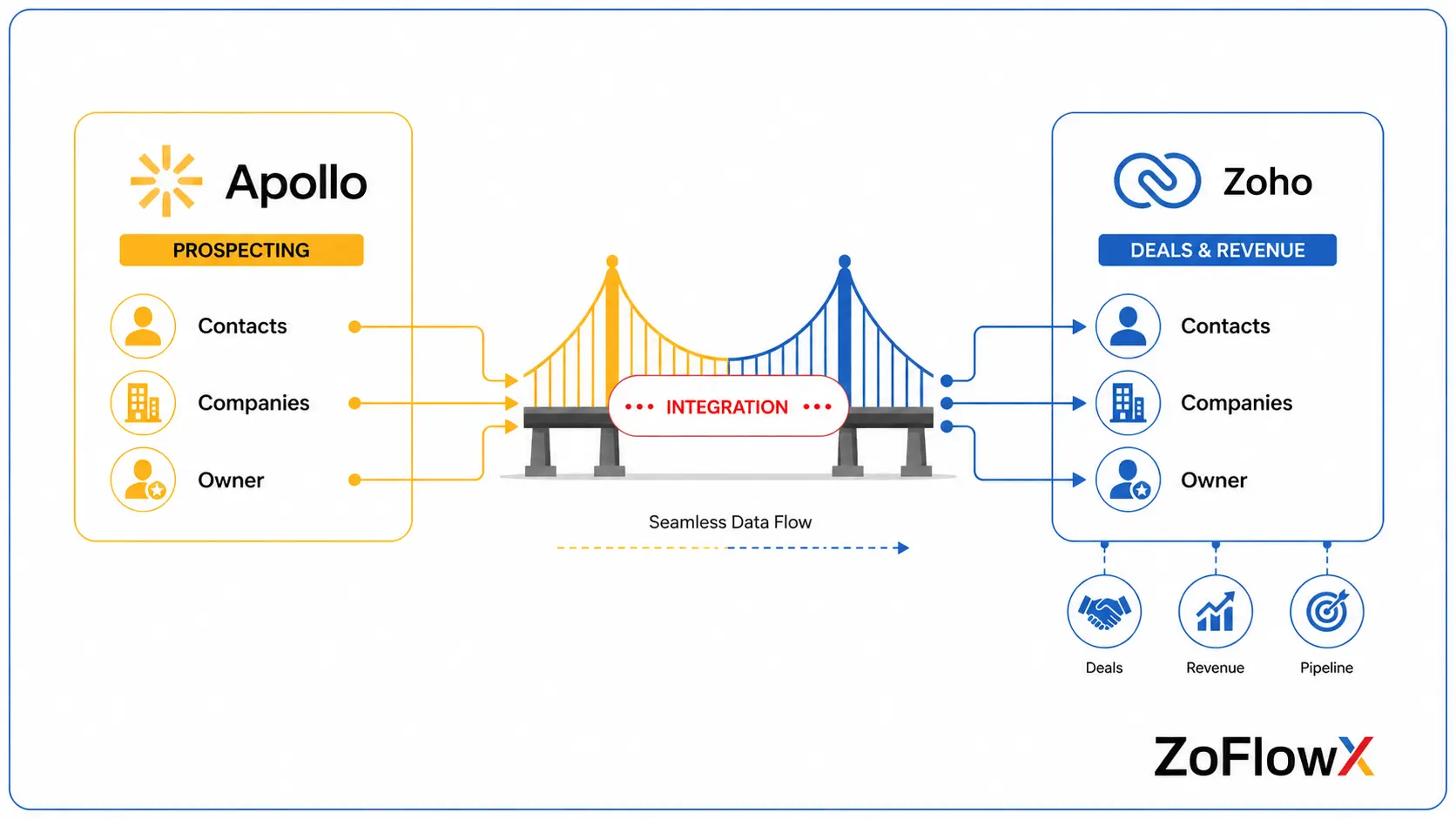
It means the two tools stop being separate islands and start sharing the same customer record.
Apollo is where your team searches for prospects, verifies emails and runs outreach sequences. Zoho CRM is where deals, follow-ups and revenue actually live. The middle bridge is the integration.
The Zoho CRM and Apollo integration is a two-way data link between your prospecting tool and your CRM. Contacts and companies found in Apollo flow into Zoho automatically, while existing Zoho records flow back into Apollo so your reps never contact someone who is already a customer.
Think of a small IT services company in Chennai. Their SDR finds 200 CFOs in Apollo on Monday. Without the bridge, someone spends Tuesday morning cleaning a CSV and importing it. With the bridge, those 200 records are already sitting in Zoho on Monday evening, tagged and assigned.
Why Do Sales Teams Lose Deals Without This Connection?
Because information gets stuck in the wrong place at the wrong time.
Here is what usually goes wrong when the two tools are not talking:
- Reps chase people who already bought. Apollo has no idea the account is a live customer in Zoho.
- Follow-ups get missed. A prospect replies inside Apollo, but nobody creates a task in Zoho.
- Reporting lies. Your CRM shows 40 new leads this month. Apollo shows 300 people contacted. Neither number is trustworthy.
- Manual entry eats selling time. Ten minutes per batch, several times a day, adds up to days per quarter.
- Data quality drops. Two reps type the same company name three different ways.
A quick example: a travel company runs an Apollo campaign to corporate HR heads. Twelve people reply with interest. Those replies sit in Apollo. Meanwhile the Zoho pipeline still shows an empty week, so the sales head assumes the campaign flopped and switches it off. The campaign worked. The plumbing did not.
What Are the Ways of Connecting Apollo to Zoho CRM?
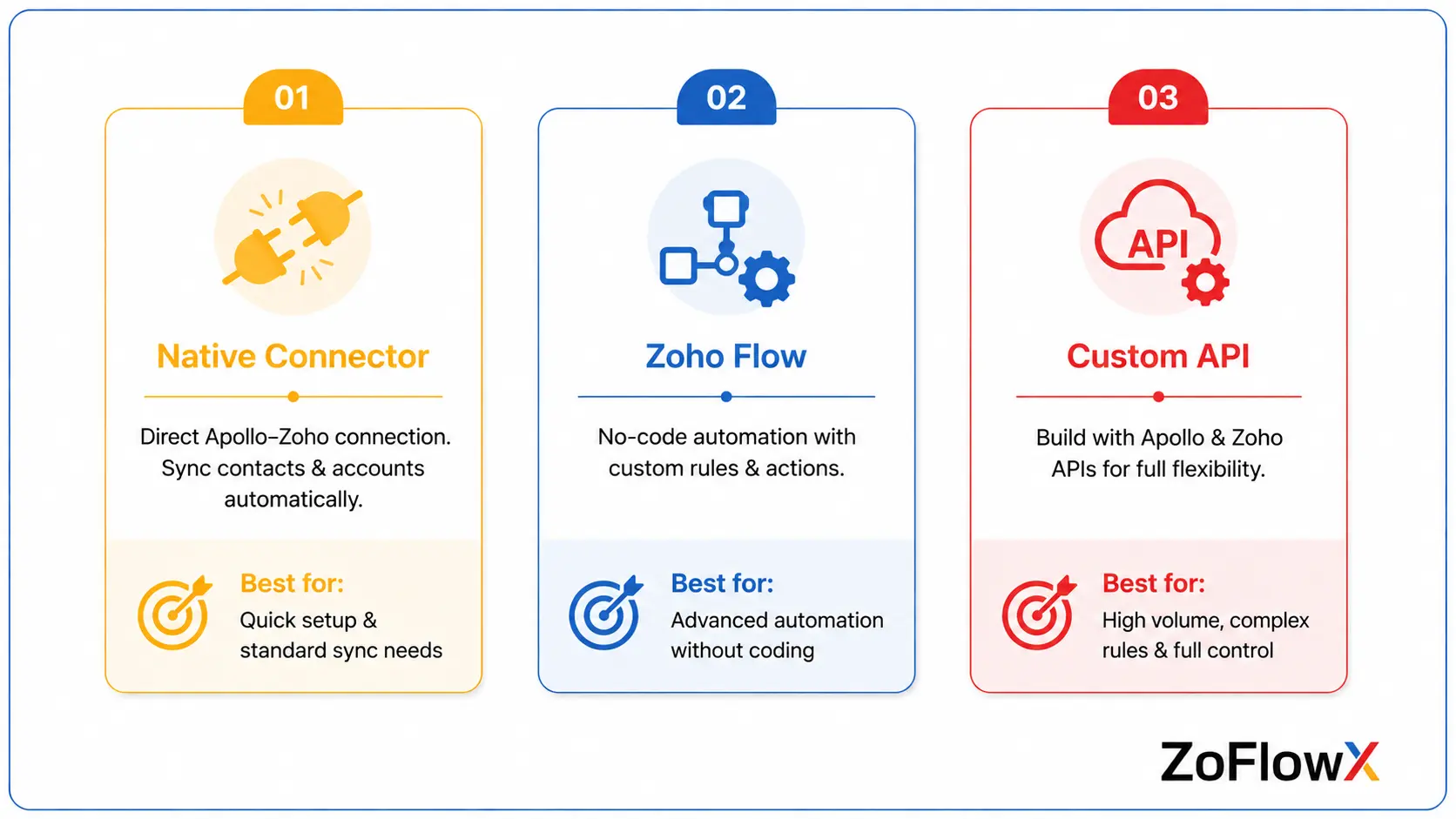
There are three practical routes, and the right one depends on how much you want to move and how clean you want it.
Route 1: Apollo's Built-In Zoho Connection
Apollo provides a direct Zoho CRM connection in its own settings. It pulls contacts and accounts from Zoho into Apollo, and pushes Apollo records back into Zoho on the rules you set.
This is the fastest starting point and covers most standard needs: names, emails, job titles, phone numbers, addresses, company details and record owners.
Availability of the Zoho connector can depend on your Apollo plan and rollout status, so check under Settings → Integrations. If Zoho is not listed there, ask Apollo support before assuming it does not exist.
Route 2: Zoho Flow for No-Code Automation
Zoho Flow sits between the two apps and lets you build your own rules with drag-and-drop blocks. It is the better choice when you want things the native connection does not do — like creating a Task in Zoho the moment a prospect replies, or dropping new Apollo contacts into a specific Zoho custom module instead of Leads.
Route 3: A Custom API Build for Full Control
For teams with heavy volume, strict deduplication rules or unusual modules, a direct API build is the strongest option. Apollo provides an API key under its API and Webhooks settings, and Zoho CRM accepts data through its own REST API and Deluge functions.
This is where automating Apollo data in Zoho stops being a simple import and starts being a real sales engine. It is also the route where working with ZoFlowX Integration Experts saves you weeks of trial and error.
How Do You Set Up the Native Connection Step by Step?
Here is the honest, no-jargon version of the setup.
Step 1: Confirm Access Before You Start
You need permission to edit integration settings in Apollo, and administrator rights in Zoho CRM. Also note this: Apollo allows only one CRM at a time. If Salesforce or HubSpot is already connected, disconnect it first.
Step 2: Connect Your Zoho Account
In Apollo, go to Settings, open Integrations, search for Zoho and click Connect. Approve the account access, sign in to Zoho and accept the permission screen. That is the entire handshake.
Step 3: Map Your Fields Carefully
Apollo automatically matches the obvious fields — first name, last name, email, title, phone, company, owner and address. Then it lets you add more.
This is the step people rush and regret. If you have custom fields in Zoho like Industry Segment or Lead Source Detail, map them now. Unmapped fields simply will not carry data across.
Field mapping tells the system which Apollo field belongs in which Zoho field. Standard fields map on their own, but custom Zoho fields must be added manually. Skipping this step is the number one reason an Apollo Zoho data sync looks fine on day one and turns into a mess by month two.
Step 4: Match Apollo Stages With Zoho Statuses
Apollo uses stages. Zoho uses statuses. You need to tell the system which one equals which.
Keep it one-to-one. One Apollo stage should point to exactly one Zoho status, and never the same status twice. Mapping two things to one place is what causes contacts to land in stages nobody expected.
Step 5: Decide What Actually Gets Pushed
You can push every Apollo contact into Zoho, or only contacts at chosen stages.
For most businesses, pushing everything is a mistake. A better rule: push only prospects who have replied or shown interest. Everyone else stays in Apollo until they earn a place in your CRM.
Step 6: Test With a Small Batch First
Pick ten records. Push them. Open Zoho and check every single field.
Wrong owner? Fix the mapping. Blank phone number? Fix the mapping. Only when ten records look perfect should you turn on the full sync.
Also worth knowing: the first pull of records from Zoho into Apollo can take around six hours. That delay is normal and it gives you time to finish your settings before data starts moving in volume.
Which Data Should Actually Flow Between the Two Tools?
Not everything needs to move. Moving less, but moving it accurately, always wins.
Worth syncing:
- Contact basics - name, work email, job title, direct phone
- Company details - legal name, website, location, employee size
- Record ownership, so the right rep owns the right lead
- Lead stage or status, so your pipeline reports stay honest
- Do-not-call status, so compliance is never a guess
Usually not worth syncing:
- Every bounced or unverified email address
- Cold prospects who have never opened a message
- Duplicate company records with slightly different spellings
Picture a machinery supplier with 30,000 Apollo contacts. Pushing all of them into Zoho would bury the 400 accounts that actually matter. Syncing Apollo leads with Zoho works best when it is selective.
How Does Better Sync Turn Into More Closed Deals?
Because speed and context are what close deals, and this connection gives you both.
When Apollo and Zoho share data, reps see a prospect's full history in one screen — outreach sent, replies received and deal stage. Faster follow-up on warm replies is the single biggest conversion lift most teams see after connecting Apollo to Zoho CRM, often within the first month.
Three practical wins:
- Faster response time. A reply reaches the CRM in minutes, not at end of day.
- Better prioritisation. Reps work the warmest leads first because stage data is accurate.
- Cleaner handovers. When a rep leaves, the record still holds the full story.
According to ZoFlowX, most teams do not need more leads to grow. They need faster action on the leads they already have, and that is exactly what this integration unlocks.
What Mistakes Do Businesses Make While Setting This Up?
Most integration failures are not technical. They are planning failures.
- Turning on full two-way sync from day one. Start one-way, prove it works, then open the second direction.
- Ignoring custom fields. Your best data usually lives in custom fields, and those need manual mapping.
- No deduplication rule. Without a matching key like email or domain, you will end up with three copies of the same buyer.
- Renaming a Zoho status later and forgetting the mapping. Change the name in Zoho, update the mapping in Apollo the same day.
- Nobody owning the sync. Assign one person to check it weekly for the first month.
According to ZoFlowX, 80% of the "broken integration" support requests we see turn out to be a mapping or duplicate-rule problem, not a platform bug.
How Do You Stop Duplicate Records Piling Up in Zoho?
Pick one unique identifier and let the system match on it every single time.
Work email is the safest match key for people. Website domain is the safest for companies. Company name is a terrible match key, because "Acme Pvt Ltd", "Acme Private Limited" and "ACME" will all create separate records.
A simple habit that helps: before any bulk push, run a duplicate check inside Zoho on the email field. Five minutes of checking saves five hours of merging.
If your data is already messy before you connect anything, clean it first. Syncing a messy database only spreads the mess to a second system. This is where a proper audit from ZoFlowX CRM Experts pays for itself quickly.
What Should You Automate Once the Link Is Live?
This is where the real value shows up, and where most companies stop too early.
Useful automations to build:
- Instant task creation when a prospect replies to an Apollo sequence
- Auto-assignment of new leads by region, industry or company size
- Stage updates in Zoho when a prospect books a meeting
- Internal alerts to WhatsApp, email or Cliq when a high-value account engages
- Enrichment top-ups, filling blank Zoho fields with Apollo company data
- Weekly reports comparing outreach volume against pipeline created
Here is a simple scenario. One rule of the staffing firm : when an Apollo prospect replies, Zoho creates a call task due in two hours and pings the rep. Nothing else changes. Their reply-to-meeting rate improves because somebody now calls while the prospect is still thinking about it.
One thing to be clear about: the built-in Apollo connection focuses on contact and account data. If you want call logs, sequence steps and reply events recorded inside Zoho, that usually needs Zoho Flow or a custom webhook build on top.
How Long Does the Whole Thing Take to Go Live?
For a straightforward setup, plan two to five working days.
A rough breakdown:
- Day 1: Field audit and mapping plan
- Day 2: Connection, mapping and stage matching
- Day 3: Test batch, duplicate checks, corrections
- Day 4–5: Full sync, automation rules and team training
Multiple Zoho custom modules, multiple territories, strict compliance rules - take longer. But nobody should be stuck at this for a month.
Should You Handle It Yourself or Bring in a Specialist?
Do it yourself if you have fewer than 2,000 records, standard fields and one sales team.
Bring in help if any of these apply:
- You use custom modules or non-standard pipelines in Zoho
- You have more than one Zoho org, or more than one country
- Your existing CRM data already has duplicates
- You need call activity, replies or sequence events inside Zoho
- Your team cannot afford downtime while you experiment
The cost of a bad integration is rarely the setup fee. It is the six months of decisions made on incorrect data.
Wrapping Up
Your prospecting tool and your CRM should never be two separate worlds. When you integrate Apollo.io with Zoho CRM, your reps stop doing data entry and start doing what you actually pay them for - talking to buyers.
Start small. Map your fields properly, push only the leads that matter, and test with ten records before you trust it with ten thousand.
If you would rather have it built right the first time, our team handles the mapping, deduplication, automation and training end to end. Call us on +91 8190009222 or write to info@zoflowx.com, and we will review your current setup and tell you honestly what it needs.
Every Day You Wait, Warm Leads Go Cold in Someone Else's Inbox
Fix your Apollo Zoho data sync before your competitor calls your prospect first.
Book My Free Integration AuditFrequently Asked Questions
Is there a native way to link Apollo.io and Zoho CRM?
Yes, Apollo offers a direct Zoho CRM connection inside Settings → Integrations. It pulls your existing Zoho contacts and accounts into Apollo, and pushes Apollo records back based on the rules you choose. Availability can depend on your Apollo plan and rollout stage, so check your integrations list first. If Zoho does not appear there, contact Apollo support or use Zoho Flow as an alternative route.
Can I keep Salesforce connected to Apollo at the same time?
No, Apollo allows only one CRM connection at a time. If Salesforce or HubSpot is already connected to your Apollo account, you must disconnect it before adding Zoho. Plan this carefully, because disconnecting an active CRM affects your existing sync history. Export a backup of your data first, confirm nobody is mid-campaign, and schedule the switch outside peak selling hours to avoid disruption.
How long does the first data sync usually take?
The initial pull of records from Zoho into Apollo takes roughly six hours. This is intentional, giving you breathing room to finish your field mapping and push settings before large volumes start moving. During this window, avoid restarting the sync manually, because doing so resets the process and delays completion. Use the time productively to review your mapping and duplicate rules instead.
Will this integration create duplicate records in my CRM?
Not if you set a proper matching key before switching it on. Use work email for people and website domain for companies, never company name. Run a duplicate check inside Zoho before any bulk push, and clean existing duplicates first. Syncing a messy database simply copies the mess into a second system, so a short data cleanup upfront saves hours of manual merging later.
Can Apollo data reach my Zoho custom fields?
Yes, but only if you map them manually. Apollo automatically matches standard fields like name, email, title and phone, while custom Zoho fields need to be added through the field mapping screen. Anything left unmapped simply will not carry data. This is the most commonly skipped step, and it is the usual reason records arrive in Zoho looking half empty a few weeks later.
Does the built-in connection record calls and email replies in Zoho?
The native connection focuses on contact and account data rather than activity history. If you want call logs, sequence steps and reply events written into Zoho, you will usually need Zoho Flow or a custom webhook build layered on top. Many teams start with the native contact sync, then add activity automation once the basics are stable and their field mapping is proven correct.
What happens if I rename a status in Zoho later?
Your mapping breaks quietly, which is worse than breaking loudly. If you rename, delete or add a Zoho status, update the corresponding stage mapping in Apollo the same day. If you delete a status entirely, remove the Apollo stage tied to it and move affected records to an active stage. Keep every mapping one-to-one, since duplicate mappings send contacts to unexpected places.
Do I need a developer to complete this setup?
Not for a basic connection. If you use standard modules, standard fields and one sales team, an admin can complete it in a day. You need specialist help when you have custom modules, multiple Zoho organisations, strict deduplication rules or a need for activity-level sync. In those cases, an experienced Zoho partner prevents mistakes that are painful and expensive to unwind later.